Timeline
How the timeline works
Lay out a fixed show in time and play it.
The timeline turns cues into a fixed, repeatable show. You place cue clips on tracks against the music, automate them, and play the timeline from the start, from timecode, or from a DJ's deck. The same timeline can be rendered to a file for Show Alchemy.
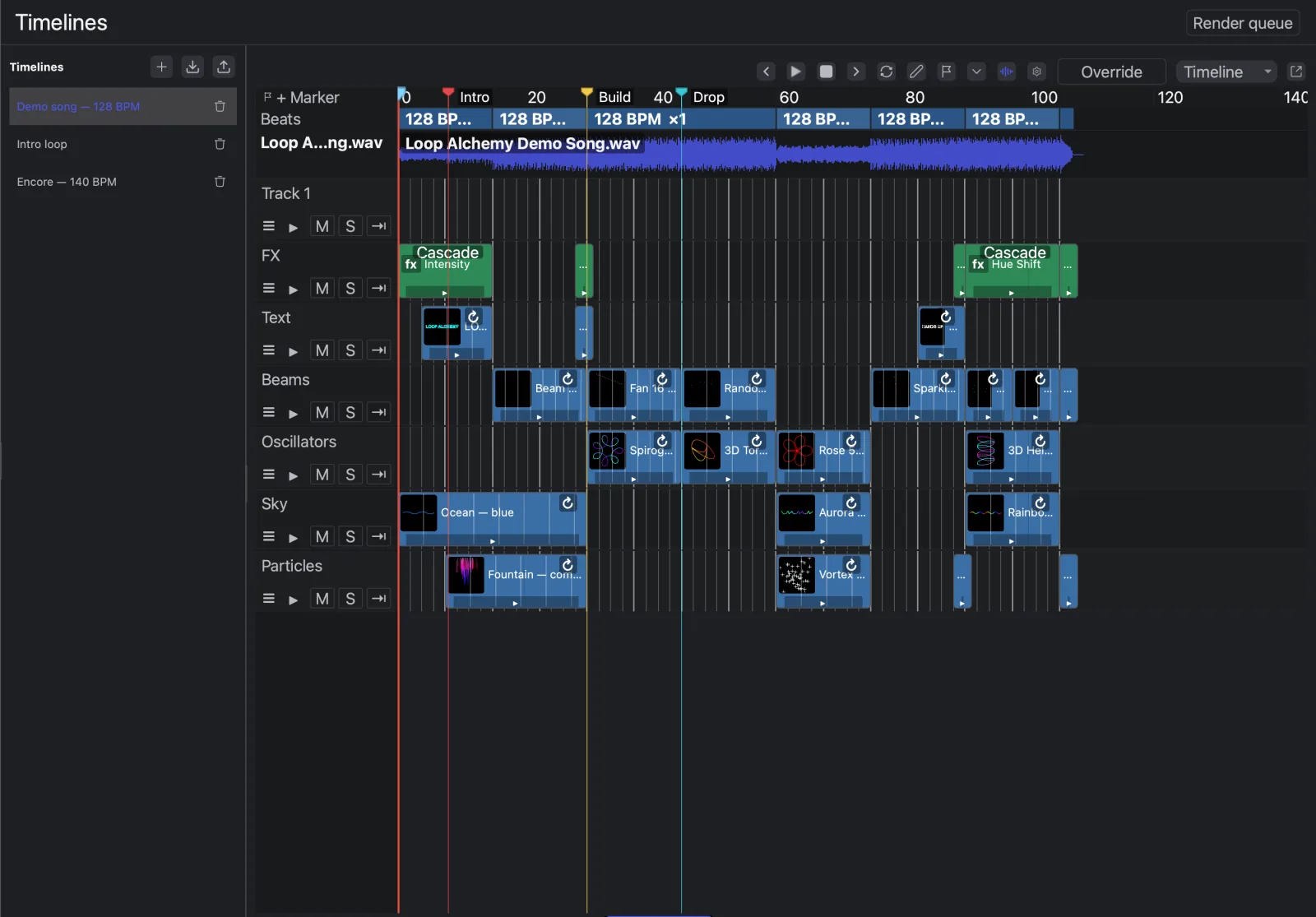
The parts of a timeline
| Part | What it is |
|---|---|
| Tracks | Rows of clips. Laser tracks add up; video tracks hold video. See Tracks and clips |
| Clips | Cues, other timelines, effects, laser streams and videos, each with a start and a length |
| Markers | Named flags to jump between. See Markers and sections |
| Beat sections | The beat grid for part of the timeline: BPM and subdivisions. See Markers and sections |
| Automation | Keyframes that change a clip's gain or an effect's parameters over time. See Keyframes and automation |
| Music | One audio file the timeline plays and can follow. See Audio and video |
A workspace holds any number of timelines. A timeline can contain another as a clip, one level deep.
Where to find it
Timelines live on the Timelines page: the list on the left, open timelines as tabs on the
right. On the Performance page, the Timeline handle or T slides up the timeline drawer, so
you can play pads and the timeline together. Pop out into a window moves it to its own window,
for example on a second screen.
- Keyboard shortcuts go to the timeline view you clicked last.
- Closing a tab doesn't delete the timeline: it shows (closed) in the list. Double-click it to open it again.
- Drag a row of the list onto a track of another timeline to nest it.
- Import timeline… makes a timeline from a laser WAV, a mixdown or a show package. See Exports and mixdowns.
- Right-click a row for Publish to Cloud Library….
How a timeline plays
A timeline plays on its own clock, and every frame is worked out from the playhead position. Start in the middle of a clip and its cue plays from that point, exactly as if it had played through. Playback, scrubbing and rendered files all match.
The output is built every frame, bottom track first:
- Each track draws its clips at the playhead and scales them by the track's opacity.
- Effect clips change what the tracks below them draw. See Timeline effects.
- The finished picture is combined with the pads, by the timeline's output mode.
- The live master effects and master sliders then act on the combined output, as for pads.
Additive / Override in the toolbar sets the output mode:
| Mode | What you get |
|---|---|
| Additive | The timeline adds to cues played from pads |
| Override | The timeline replaces the pads. If every track and clip is routed to chosen zones, only those zones are replaced and the pads keep the rest |
Only the timeline in the front tab plays. It stops by itself once the playhead passes its last clip, its last beat section and the end of its music.
Time and tempo
The ruler counts seconds. Beat sections lay a beat grid over it, and clips, keyframes and automation presets snap to that grid.
Cues inside clips still follow their own timing:
- A time-based cue plays at its own length in milliseconds.
- A loop-based cue plays at the BPM of the beat section it is in, and at the global tempo (the BPM in the toolbar) outside any section. A clip that runs into a section at another BPM changes speed there without jumping. Playing a timeline never changes the global tempo.
Playback sources
Besides playing it yourself, you can drive a timeline from outside:
| Source | How the timeline is driven | Set it up |
|---|---|---|
| Music | The timeline's music file drives the playhead, so laser and music never drift | Cog menu → Clock → Audio (track drives playhead). See Audio and video |
| Timecode | Incoming SMPTE timecode picks the timeline and the position | Cog menu → Timecode chase. See Timecode |
| Clockworks | A Clockworks deck that loads the matching song plays its timeline | Cog menu → Clockworks song. See Clockworks |
Timecode chase
- In Settings → Timecode, choose the source.
- In the cog menu, tick Chase timecode (it applies to all timelines).
- On each timeline that should answer, tick Chase Offset and type its Start TC, the timecode at which the timeline starts.
While timecode is locked, it wins over playing by hand: the timeline whose window (Start TC to its end) holds the timecode plays at that point. The cog menu shows the timeline playing, ● none in window (the output is blank) or ○ no signal (play by hand as usual). If two windows overlap, the earlier tab wins. A TC badge marks chasing timelines in the list.
Clockworks songs
Type the song title in Clockworks song, or click a deck number next to Capture to copy the title of the track loaded on that deck. When a Clockworks deck loads a track with exactly that title, the deck plays the timeline at its position. Several decks can play several timelines at once, added together. Pressing Play in Live Alchemy takes over from the decks.
Playlist view
Timeline / Playlist in the toolbar switches the view. A playlist is the simplest kind of timeline: the first track's clips play end to end, each overlapping the next by its Xfade. Drag a cue onto Drop cue here to append it.
Use a playlist for a looping pre-show or a run of looks with crossfades. Switch back to Timeline to fine-tune it.