Routing
Web zoning
Edit zones, masks and Power Maps from a phone, tablet or laptop's web browser on the local network.
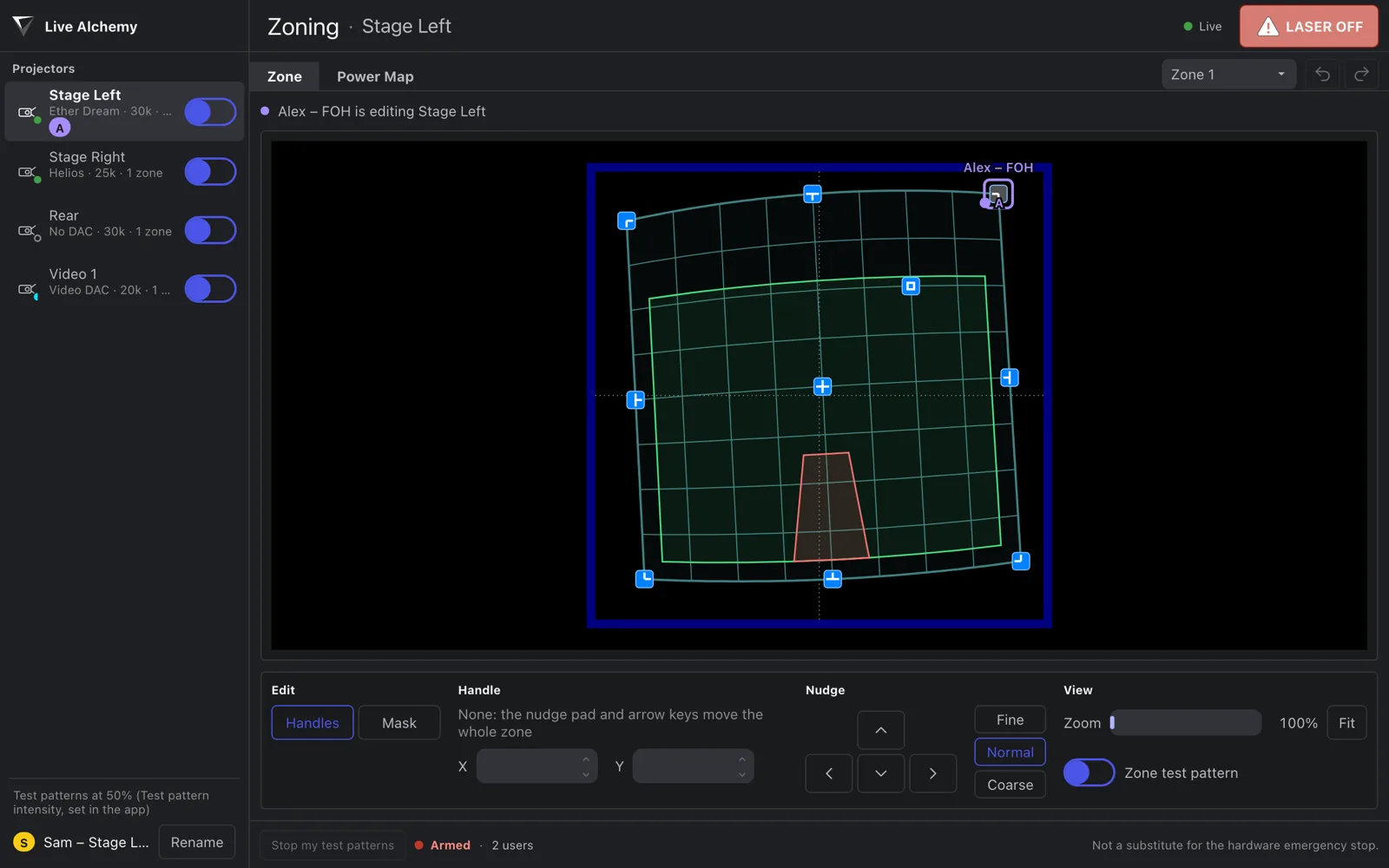
Web zoning lets technicians align projectors from a phone, tablet or laptop next to them. Live Alchemy serves a zoning page on the local network; open it in a web browser to edit zone geometry, masks and Power Maps, and to switch test patterns. Several people can edit at once, and the lasers follow every edit live. The page doesn't show what the lasers draw: watch the lasers themselves.
Turn it on
- Open Settings → Web Zoning.
- On the Server tab, switch on Enable web zoning.
- Note an address under the switch, for example
https://live-alchemy-foh.local:7780, or use Copy. The address with the computer's IP number works on every device; the.localname may not work on some Android and Windows devices.
| Control | What it does |
|---|---|
| Port | The port in the address (7780 by default). If another program uses it, web zoning doesn't start and says so. |
| Name | The .local name in the address. |
| Adapter | Serve on every network adapter, or only one. |
| Allowed computers | Only these addresses can connect, for example 192.168.1.20, 192.168.1.0/24 or 10.0.0.5-10.0.0.9. Empty: any device on the local network. |
| Stop server | Disconnects every device and turns web zoning off. |
Open the page on a phone or tablet
- Join the device to the same network as the Live Alchemy computer.
- Open the address in the browser (Safari, Chrome, Firefox or Edge; on iPad or iPhone, iPadOS or iOS 16.4 or later).
- Accept the certificate warning (below). Each browser asks once per certificate.
- Enter your name, for example "Sam – Stage Left". Others see it next to the projector you're on.
Live Alchemy shows a message whenever a device connects.
Accept the certificate warning
The page uses a certificate made on the Live Alchemy computer, so the browser warns that the connection isn't private. Accept the warning once:
| Browser | Steps |
|---|---|
| Safari (iPad, iPhone, Mac) | Tap Show Details, then visit this website, then Visit Website. |
| Chrome and Edge | Click Advanced, then Proceed to … (Edge: Continue to …). |
| Firefox | Click Advanced…, then Accept the Risk and Continue. |
The warning comes back when the computer gets a new IP address or name (a new certificate is made) or after Regenerate certificate….
Edit on the page
Pick a projector in the left sidebar, and a zone in the header if it has several. Zone and Power Map switch between the two editors.
| On the page | What you can do |
|---|---|
| Zone, Handles | Drag a handle, or inside the zone to move it all. Pinch or scroll to zoom. The nudge pad and arrow keys move the selected handle in small steps. |
| Zone, Mask | Drag a mask point; tap an edge to add one; long-press a point to delete it. Add Show inside and Add Hide inside add a polygon. |
| Power Map | Paint with the same tools as the app's Power Map editor, switch it on or off and change its resolution. |
| Undo and Redo | Undo and redo your own edits only, never someone else's. |
- You can't add, rename, delete or re-route zones, or change projector settings, from the page.
- Deleting a mask or Power Map, or resetting a Power Map, asks first.
- Coloured cursors and initials show who else is editing, and where.
- If the connection drops for more than 2 seconds, edits not yet sent are dropped and the page reloads the current zones.
Use a game controller
You can align with a game controller (Xbox, PlayStation, MFi and most others) instead of touch.
- Connect the controller to the tablet or computer (Bluetooth or USB).
- With the zoning page open, press any button on it. Browsers only show a controller to a page after a button is pressed.
- "Controller connected" shows in the header. Tap the controller icon, or press View, for the button map.
| Button | What it does |
|---|---|
| Left stick | Moves the selected handle or mask point. With no handle selected, moves the whole zone. Push gently for small moves. |
| Right stick | Fine moves. |
| D-pad | Selects the next handle that way. In Mask: ◀ ▶ the previous or next point, ▲ ▼ the previous or next polygon. |
| A | Selects a handle, then the next one. In Mask: a point, then its whole polygon. |
| B | Deselects. |
| X | Switches between Handles and Mask. |
| Y | Switches between Zone and Power Map. |
| LB / RB | The previous or next projector. |
| Menu | LASER OFF. It only mutes; re-arm in Live Alchemy. |
- On a PlayStation controller, A, B, X and Y are ✕, ○, □ and △.
- Each push of a stick is one Undo step.
- Zoom in on the page for finer stick moves.
- In Power Map, the controller only switches projector and editor; paint by touch or mouse.
Test patterns
- The switch on a projector's row in the sidebar shows its test pattern; the Zone test pattern switch shows the selected zone's.
- They run at the app's Test Pattern Intensity, which the page shows but can't change.
- They need the output armed in Live Alchemy.
- A device's test patterns stop when it goes quiet for 3 seconds, disconnects, is blocked, or when anyone presses LASER OFF. Stop my test patterns stops yours.
- In the app, the Routing toolbar shows how many web test patterns are on, with a button to stop them all. They stay on when you leave the Routing page.
LASER OFF
LASER OFF, top right of the page, mutes all laser output at once, like the app's arm button. It doesn't stop cues. The page can't turn output back on: re-arm in Live Alchemy.
Disconnect or block a device
On the Devices tab of Settings → Web Zoning, each connected device shows its name, address, the projector it's on and since when.
- Disconnect closes its connection. The page reconnects by itself.
- Block refuses its address and device until web zoning stops.
Undo on the Routing page
Undo and Redo on the Routing page toolbar (⌘Z / Ctrl+Z, ⇧⌘Z / Ctrl+Shift+Z) step
through your own zone, mask and Power Map edits in the app, whether or not web zoning is on.
- One drag or one brush stroke is one step.
- They never undo edits made from a web page.
- Loading a workspace or importing routing clears the history.