Getting started
Your first show
From an empty workspace to a cue on a laser.
You need a licensed Live Alchemy, one projector with a DAC connected, and a safe projection area. Save the workspace first (Workspace → Save as...), then as you go.
1. Connect the projector
- Click Routing in the sidebar.
- In the DACs panel, click Scan. Your DAC appears.
- Click Auto-configure. The DAC goes to a projector.
If the DAC doesn't appear, check the cable or network, and that its type is ticked under Hardware in General settings. To check alignment, see Test patterns. For how the parts fit together, see How routing works.
2. Make a cue
- Click your page under Pages.
- Right-click an empty pad and choose Create Cue. The cue editor opens.
- In the Generators panel, click + (Add generator) and pick a generator. Adjust it.
- Click Play current cue in preview to watch it.
- With Beat-Based timing, set the length in beats and measures; the cue loops to the tempo. See Playback modes.
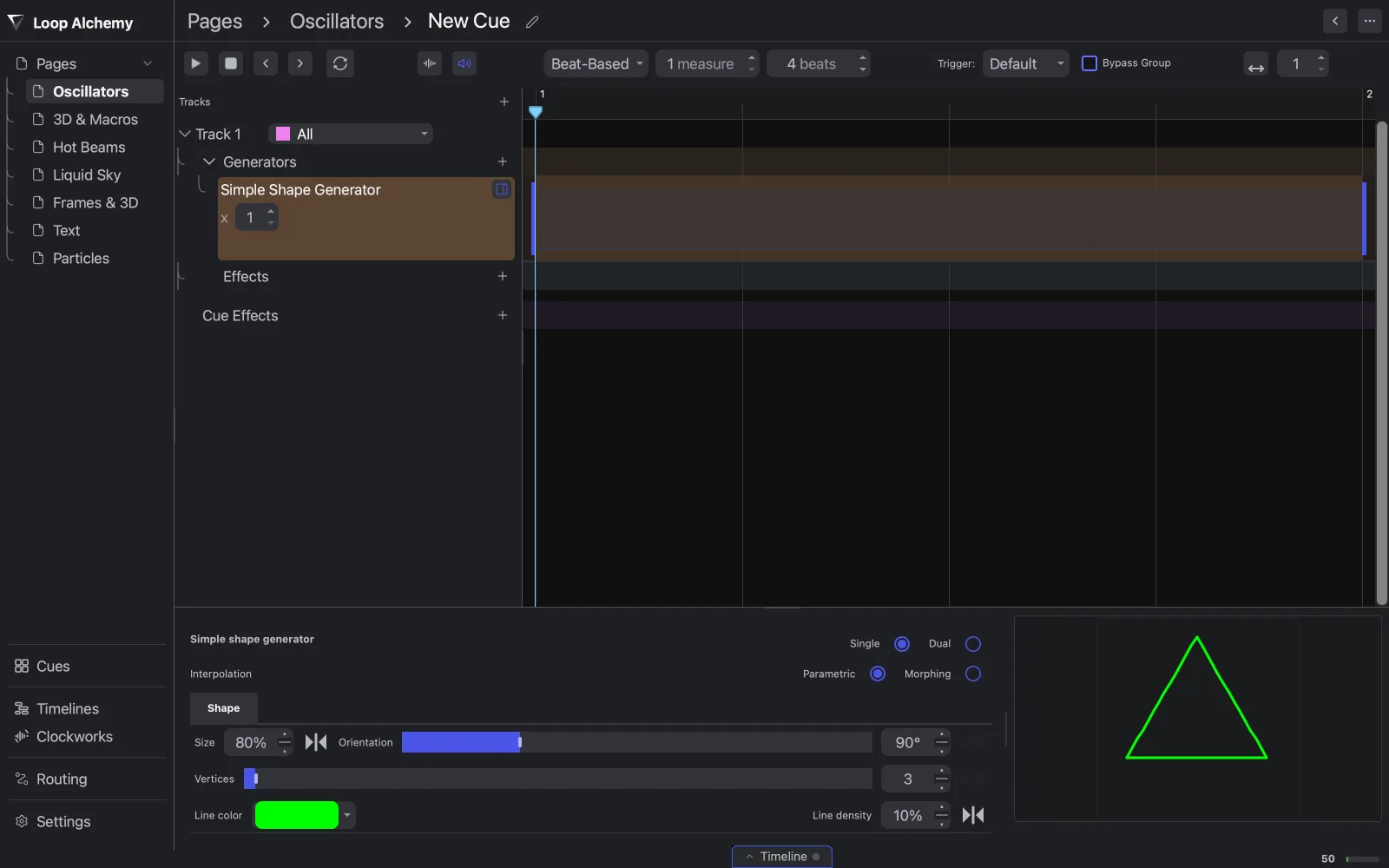
New tracks play on All (every zone), so the cue reaches your projector without more routing.
3. Play it
- Click Pages in the cue editor toolbar to return to the Performance page.
- Click LASER OFF. It changes to LASER ON.
- Click the pad. The cue plays and loops; click again to stop it.
- Tap Tap in time with the music, or drag the tempo dial. See Tempo and sync.
Stop All stops every cue at once; End All fades them out; Blackout takes the output to zero until you press it again.
Next
- More pads and pages: Cue pads, Pages.
- Recall looks with Shortcut pads.
- Add effects.
- Build a fixed show: How the timeline works.