Getting started
The main window
The sidebar, menus, toolbar and status bar.
The sidebar on the left moves between pages; each page has its own toolbar at the top; the status bar at the bottom explains whatever is under the pointer.
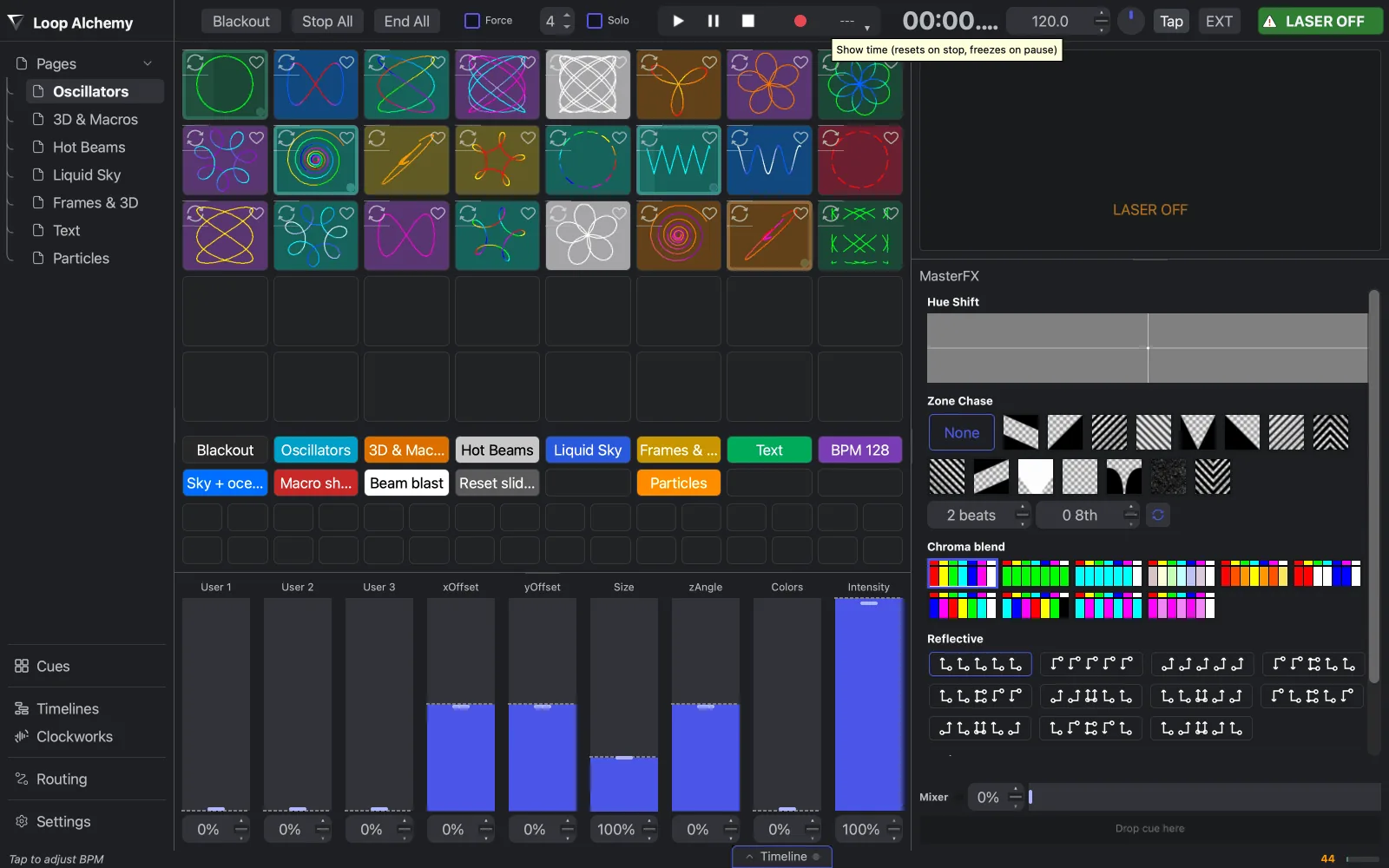
The sidebar and menus
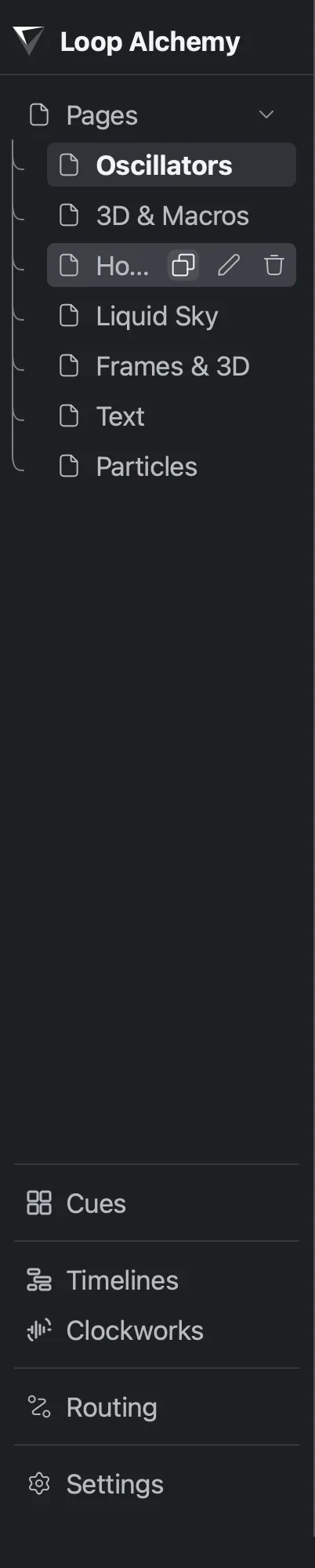
The sidebar lists the pages of the app, plus the performance pages under Pages. What isn't obvious:
- Hover Pages for + to add a page; hover a page for duplicate, edit (opens the Cues page on it) and delete. Double-click a page to rename it. See Pages.
- Clockworks appears only when Clockworks input is on. See Clockworks.
- A yellow badge on Routing counts Video DAC outputs that need relinking.
- In a window narrower than 1200 pixels the sidebar hides: click the tab on the left edge to slide it out.
- The cue editor has no sidebar entry: open it from a pad's menu or the Cues page, and click Pages at the start of its toolbar to go back. See The cue editor.
Rendering lives in the Render menu (see Exports and mixdowns), and Frames → Edit opens the Paint Alchemy frame editor (see Paint Alchemy). Shortcuts are in Keyboard and mouse shortcuts.
Arming the output
The arm button, on the Performance and Routing toolbars, reads LASER OFF when disarmed and LASER ON when armed. The rest of the Performance toolbar is covered in The Performance page.
The status bar
Hover over any control to see what it does. Messages such as Cue imported: … show here too.
With HyperFlow Rendering on (General settings), the right end shows render metrics:
| Metric | What it shows |
|---|---|
| Render FPS | 50 or more is normal; orange 30–49; red below 30 |
| Render Load | How busy rendering is, green to red. Hover for the percentage |
| Dropped Frames | Appears only when frames were dropped |
Orange or red: see Troubleshooting.