Routing
Output groups
Send one track to a named set of zones at once.
An output group is a named set of zones and virtual zones. A track sent to it draws its whole picture on every member. The Output Groups tab calls them output templates.
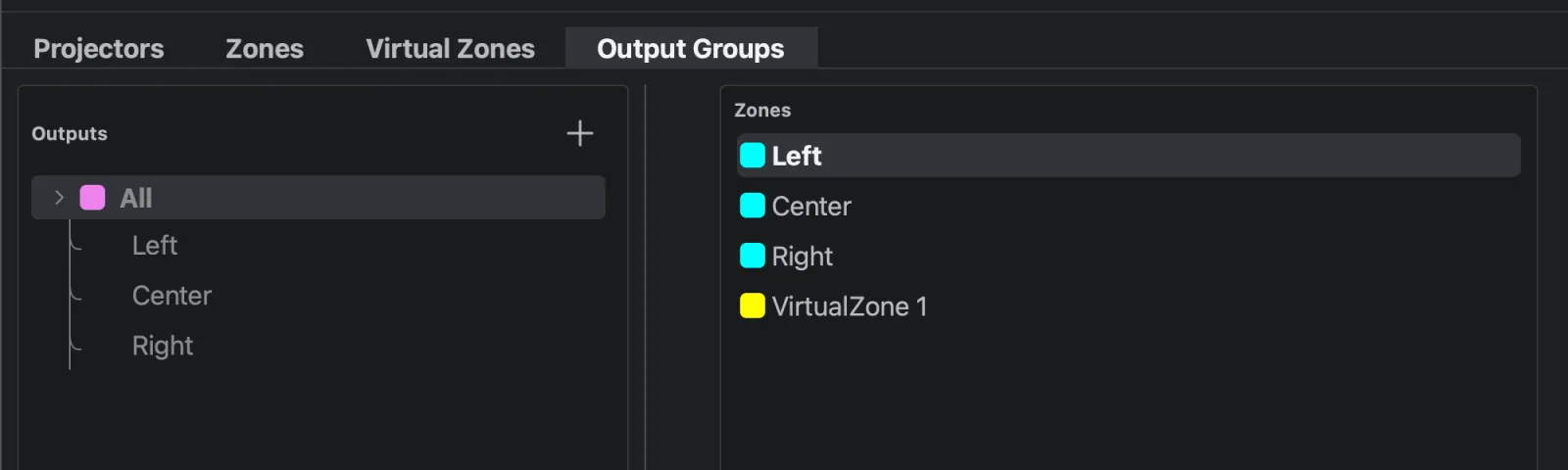
How output groups work
- Every member gets a full copy of the picture. Compare virtual zones, which cut one picture into parts.
- Members can be zones (cyan) and virtual zones (yellow).
- All is built in. It always holds every zone, follows the rig as zones come and go, and can't be renamed or edited. New tracks send to All.
- Cues store the group, not its members. Change a group and every cue that uses it follows: move a look from the side lasers to the centre ones without opening a cue.
- When you append a workspace, its cues match your output groups by name. A group your rig doesn't have falls back to All.
Create an output group
- Click + (Add output template).
- Select the group, select a zone or virtual zone in the Zones list on the right, and click the arrow that points to the group.
- Add the other members the same way.
Use them
- In the cue editor, pick the group in a track's Track outputs list (output groups are violet). See Tracks.
- On the timeline, pick it with ⇥ on a track or Send to on a clip. See Tracks and clips.
Typical groups: Left side, Right side, Centre, Audience (zones that scan the crowd, each with its own Power Map), Video (the Video DAC zones).