Performance
Keyboard pads
Play the cue pads from the computer keyboard.
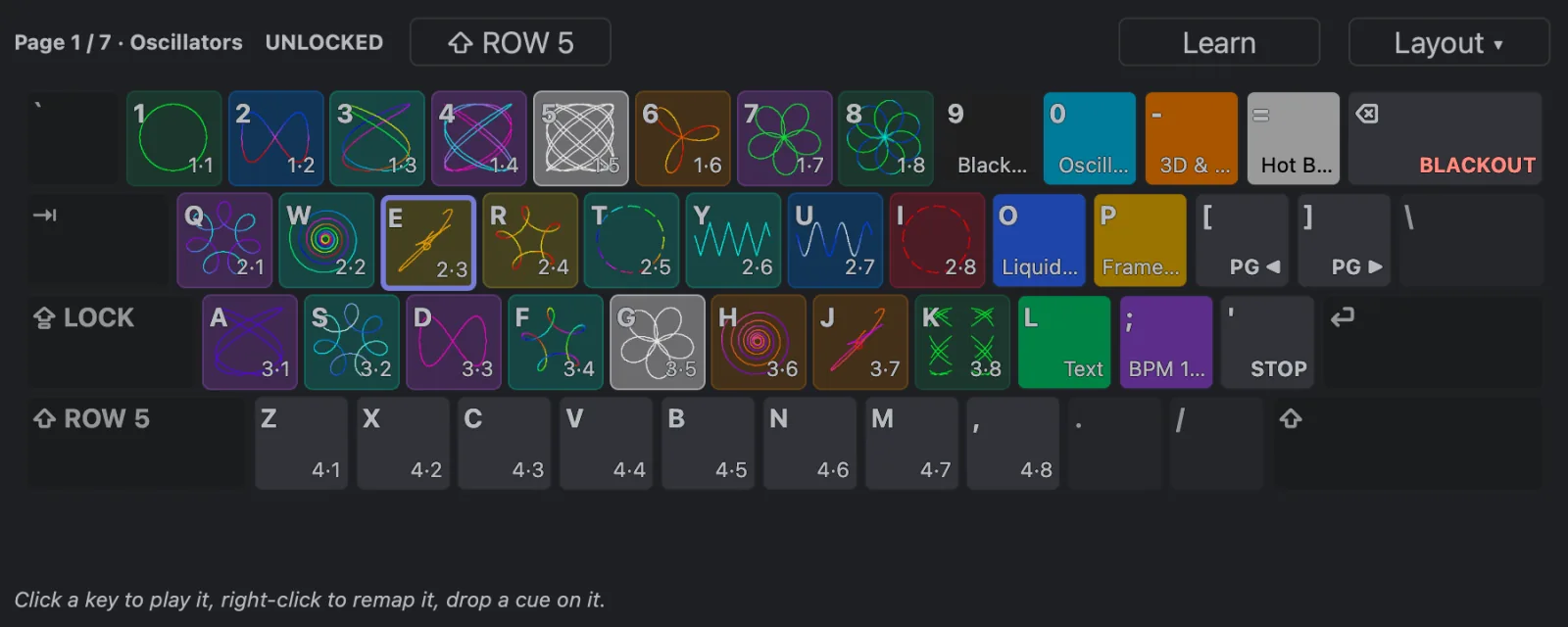
Turn on Keyboard pads and the computer keyboard plays the cue pads: four rows of keys play pad
rows 1 to 4, and Shift with the bottom row plays row 5.
Turn it on
- Click the keyboard button in the Performance toolbar, or press
⌘K(CtrlKon Windows and Linux). - The keyboard button is filled while the keys play. Dimmed, the keys are paused: hover it to see why (you are typing in a field, another page is showing, a dialog is open).
- A key letter appears in the bottom-left corner of each pad, and in the top-right corner of the shortcut pads that have a key.
- Keyboard pads stays on the next time you start Live Alchemy.
Which key plays what
| Keys | Play |
|---|---|
1–8 |
Pad row 1 |
Q–I |
Pad row 2 |
A–K |
Pad row 3 |
Z–, |
Pad row 4 |
Shift + Z–, |
Pad row 5 |
9 0 - = O P L ; |
Shortcuts 1–8 |
[ / ] |
Previous / next page |
' |
Stop all cues |
Backspace |
Blackout |
Shift + Backspace |
Laser off |
- Keys go by position, not by letter: on an AZERTY or QWERTZ keyboard the same places play the same pads. The Keyboard window shows what your keyboard prints.
- Holding a key holds the pad, so Flash pads work. Letting go releases it.
- You can hold several keys at once. Many laptop keyboards only pass two or three keys at a time: test your chords before the show. The Keyboard window shows the keys the app sees as held.
- A key you hold keeps its pad when you change page; letting go releases that pad.
Lock the keys with Caps Lock
Unlocked, the keys play only on the Performance page, and never while you type in a field. Turn Caps Lock on to lock them: they then play pads in every Live Alchemy window, text fields included. A toast says when the lock changes, and the keyboard button shows a padlock.
⌘/Ctrlshortcuts still work while locked. Password fields always get their keys.- Paint Alchemy is never locked: its keys work as usual.
- On a Mac, hold Caps Lock a moment to turn it on. If Caps Lock switches input sources, hold it longer.
- Caps Lock is remapped, used by a screen reader, or turned off by
Shifton your computer? In Settings → General → Keyboard pads, set Lock with to⌘⇧Konly:⌘⇧K(CtrlShiftK) then locks and unlocks the keys.
The keyboard never arms the lasers
No key can arm the output: arming stays a click on LASER OFF. Blackout (Backspace),
Stop all (') and Laser off (Shift Backspace) always work. A shortcut played from the
keyboard skips its "Laser on" steps.
The Keyboard window
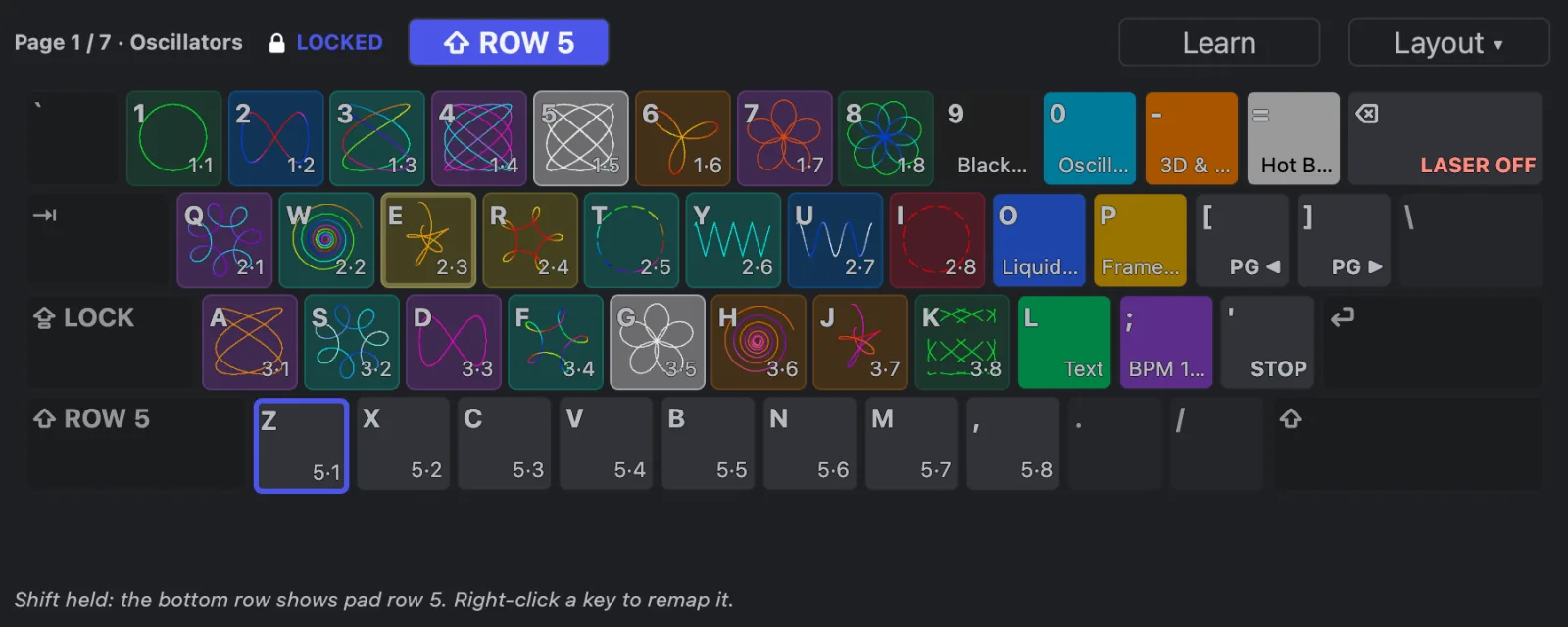
Right-click the keyboard button and choose Show keyboard window. It stays on top of the app.
- Each key shows its pad's preview and group colour, a pulsing border while the cue plays, and sinks while you hold it.
- Hold
Shift, or click ⇧ ROW 5, to see what the bottom row plays with Shift. - Click a key to play it.
Change the keys
The keys are saved with the workspace.
- Learn: click Learn in the Keyboard window (or Learn keys… in the keyboard button's menu),
click a pad, a shortcut pad or an action, then press a key. Pads move on to the next pad, so you
can learn a whole row in one go. Hold
Shiftto learn the Shift layer.Escends learning. - Right-click a key in the Keyboard window to choose a pad, a shortcut, an action or a pinned cue, or to clear it.
- Drop a cue on a key that plays a pad to put the cue on that pad. Drop it on any other key to pin it: the key then plays that cue wherever it sits.
⌘-drag a pad onto a key to give the key that pad.Esc,Tab,Space,Return, the arrows and the function keys can't be learned: they keep their usual jobs.
Save and share layouts
In the keyboard button's menu, Layout:
- Export… saves the workspace's keys as an
.xkeysfile; Import… loads one. - The list shows the
.xkeysfiles in your keyboard layouts folder; choose one to load a copy. - Reset to default brings back the keys in the table above.
- Shape draws the Keyboard window as an ANSI, ISO or JIS keyboard.