Routing
Power Map
Dim parts of a zone with a painted brightness map.
A Power Map (power attenuation matrix, PAM in the app) is a greyscale picture laid over a zone. Every point the zone draws is dimmed by the grey under it: white leaves it at full power, 50 % grey halves it, black blanks it.
When to use one
- Audience scanning. Keep beams that cross the crowd within your limits while the effects above them stay bright.
- Hot spots. Tame the area where many shapes overlap, or where a beam rests on a light surface.
- Uneven surfaces. Even out a wall or screen that is closer, lighter or more reflective in one part than another.
- Soft edges. Fade a zone out towards a truss or balcony edge, inside a hard mask.
A mask decides where the zone may draw. A Power Map decides how bright it may be there. Use both: the mask first, then the Power Map on what is left.
How it is applied
- It belongs to one zone. Each zone can have its own.
- It is laid over the zone's canvas, before the zone's geometry. Reshaping the zone bends the map with it; you don't need to repaint after adjusting a keystone.
- It works on everything the zone draws: cues, timelines, virtual zones, output groups and test patterns.
- It comes after every effect and the master sliders, and before the projector. It only ever lowers brightness.
- On a Video DAC the picture is dimmed the same way, so a video projector covering an audience follows the same map.
Create a Power Map
- On the Zones tab, select the zone.
- Click the + beside Power Map (Create PAM (Power Attenuation Matrix)). The PAM Editor opens, all white (no dimming).
- Paint. Your painting applies as you go.
Things to know while painting:
- Brush Value (the brightness you paint) starts at 0 %, so the first stroke blanks.
- Linear Gradient: drag from start to end; it fades from the value under the start point to Brush Value. Gradient Width limits it to a band.
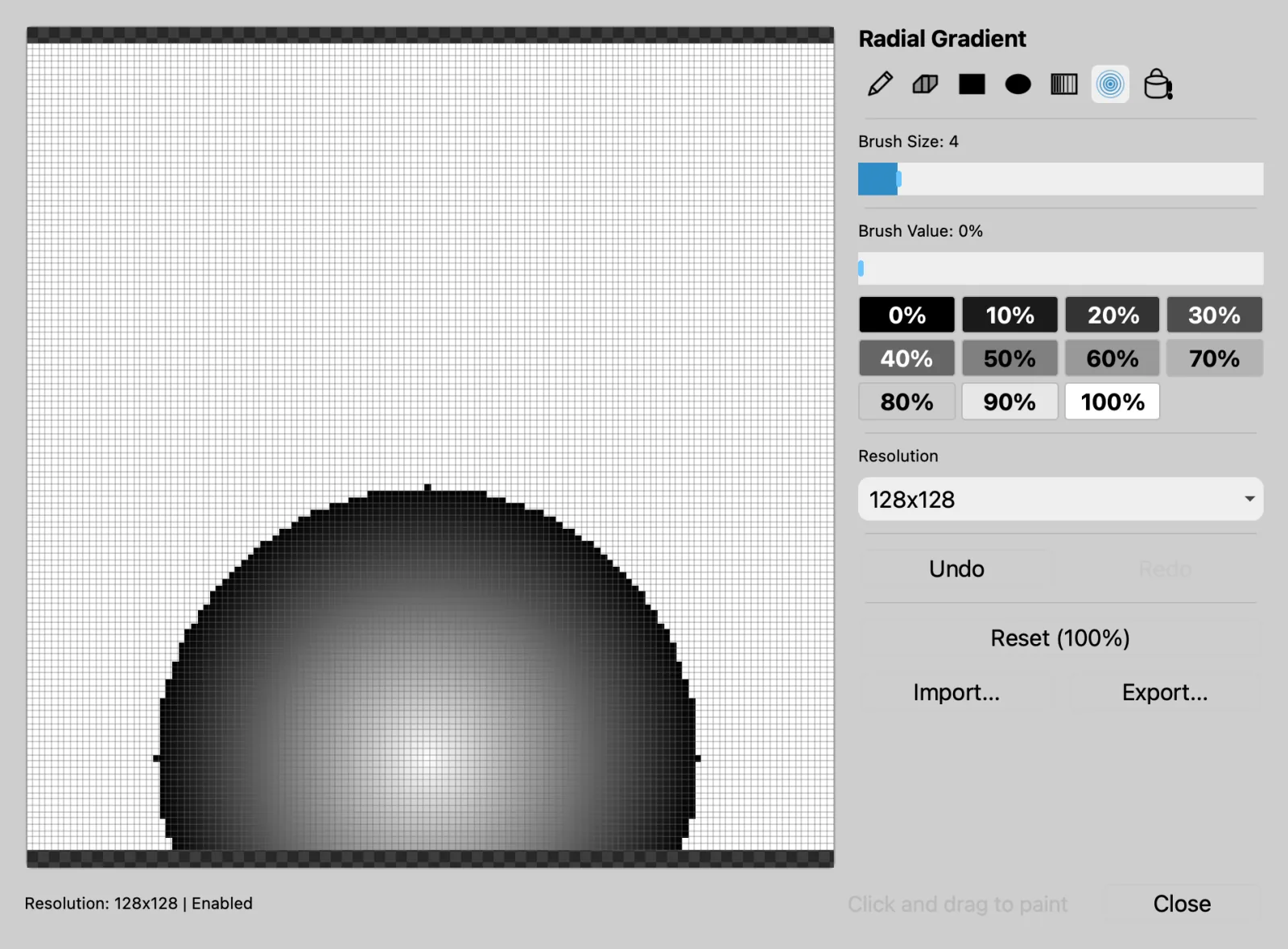
- Radial Gradient: drag from the centre outwards; the centre keeps its value, the edge gets Brush Value.
- Resolution sets how many cells cover the zone (128x128 by default).
Example: an audience fade
The zone covers a stage and the crowd below it.
- Create the Power Map. Set Brush Value to 30 %.
- Pick Linear Gradient and drag from the stage edge down to the bottom of the zone. The stage stays at 100 %, and the crowd area fades down to 30 %.
- Check with a test pattern and your measurements, then save the workspace.
Import and export
- Export... writes a PNG; Import... reads a PNG, JPG or BMP (brightness only). Paint a map in an image editor over a photo of the venue, then import it.
- A Pangolin BEYOND
.bzonesimport brings each zone's BAM in as its Power Map. See How routing works. - Power Maps travel with the workspace and with
.xrouterouting exports.