Effects
Master effects
Global effects that change everything you play.
Master effects (Master FX) change the whole show at once, on top of every playing cue. Play them from the MasterFX panel on the Performance page; prepare them on Settings → Master FX.
There are five: Hue Shift, Zone Chase, Chroma blend, Reflective and Motion Fan.
How they behave
- Each does nothing at rest and acts as soon as you engage it, on every cue and zone.
- They run after cue effects, always in this order: Hue Shift, Zone Chase, Reflective, Motion Fan. See Effects overview.
- Hue Shift's gradient, Zone Chase, Reflective and Motion Fan use each zone's left-to-right position in the stage preview on the Routing page. A zone with no position is skipped (Reflective treats it as centre stage).
- They also act on top of a playing timeline.
- Settings and the chosen Chroma blend palette are saved with the workspace. Hue Shift and Motion Fan pad positions are not.
- A cue effect and its matching master effect both apply; they stack.
Playing master effects
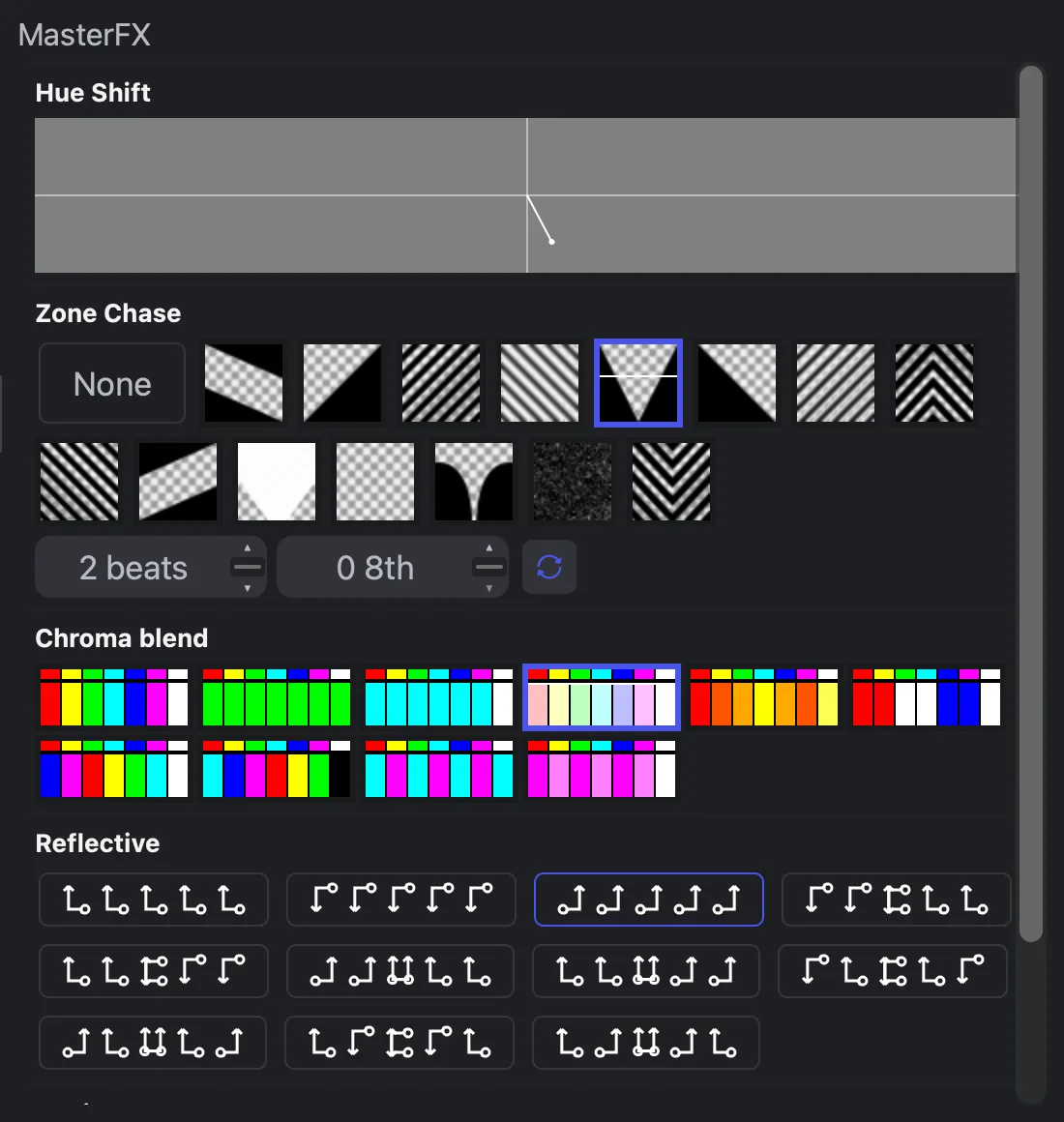
| Mouse action | Result |
|---|---|
| Left-drag | The effect follows the drag and springs back on release |
| Right-drag | The effect follows the drag and stays where you leave it |
Shift + drag (Hue Shift, Motion Fan) |
Horizontal only |
⌘/Ctrl + drag (Hue Shift, Motion Fan) |
Vertical only |
Left-click a held Hue Shift or Motion Fan pad to return it to rest. You can also drive master effects from shortcut pads, external control and timeline effect clips.
Settings → Master FX
Each master effect has a list of named settings; the one whose radio button is on decides which palettes, patterns or chase maps the Performance page shows. Each effect starts with one setting, default; hover the effect's name for + to add one.
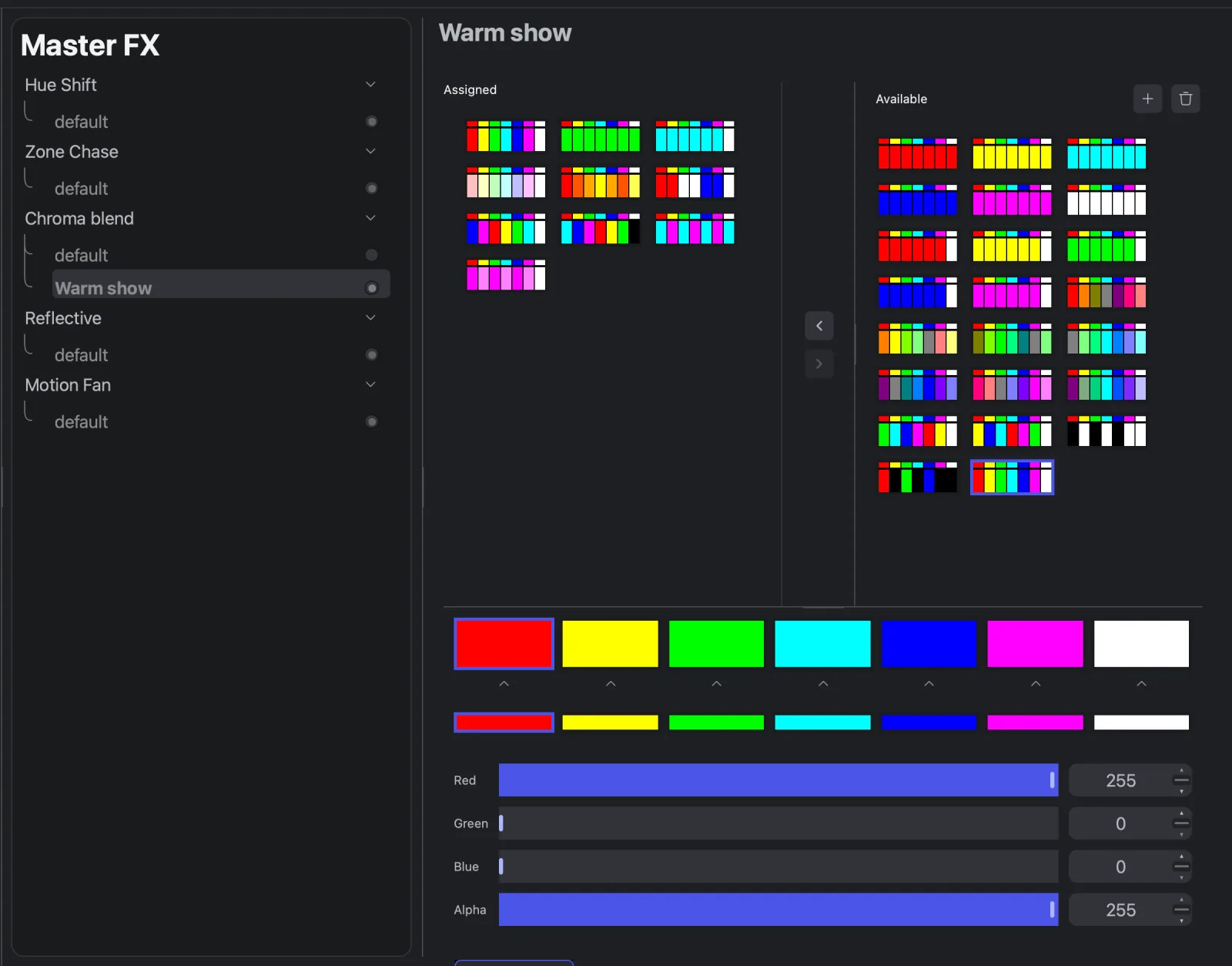
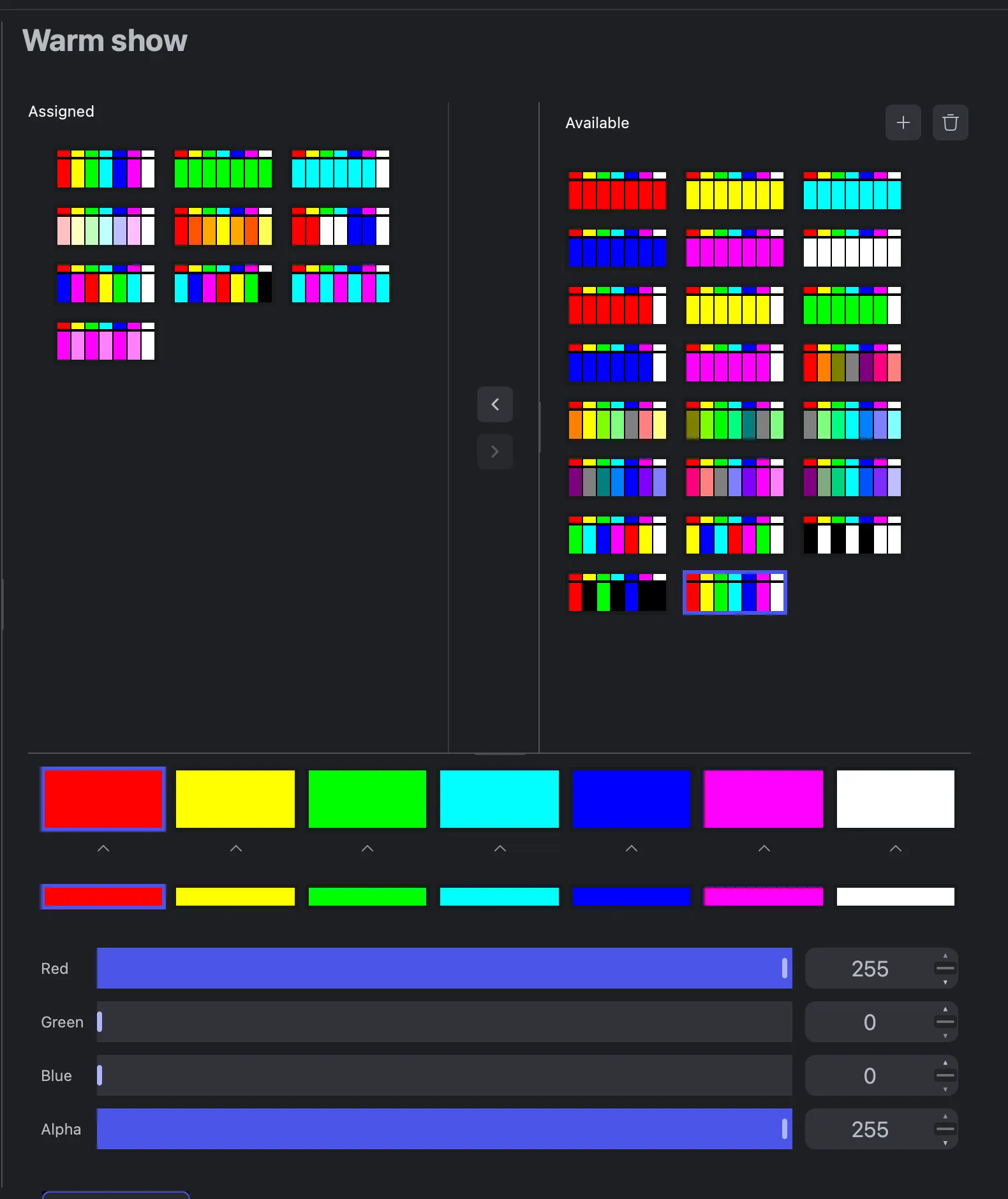
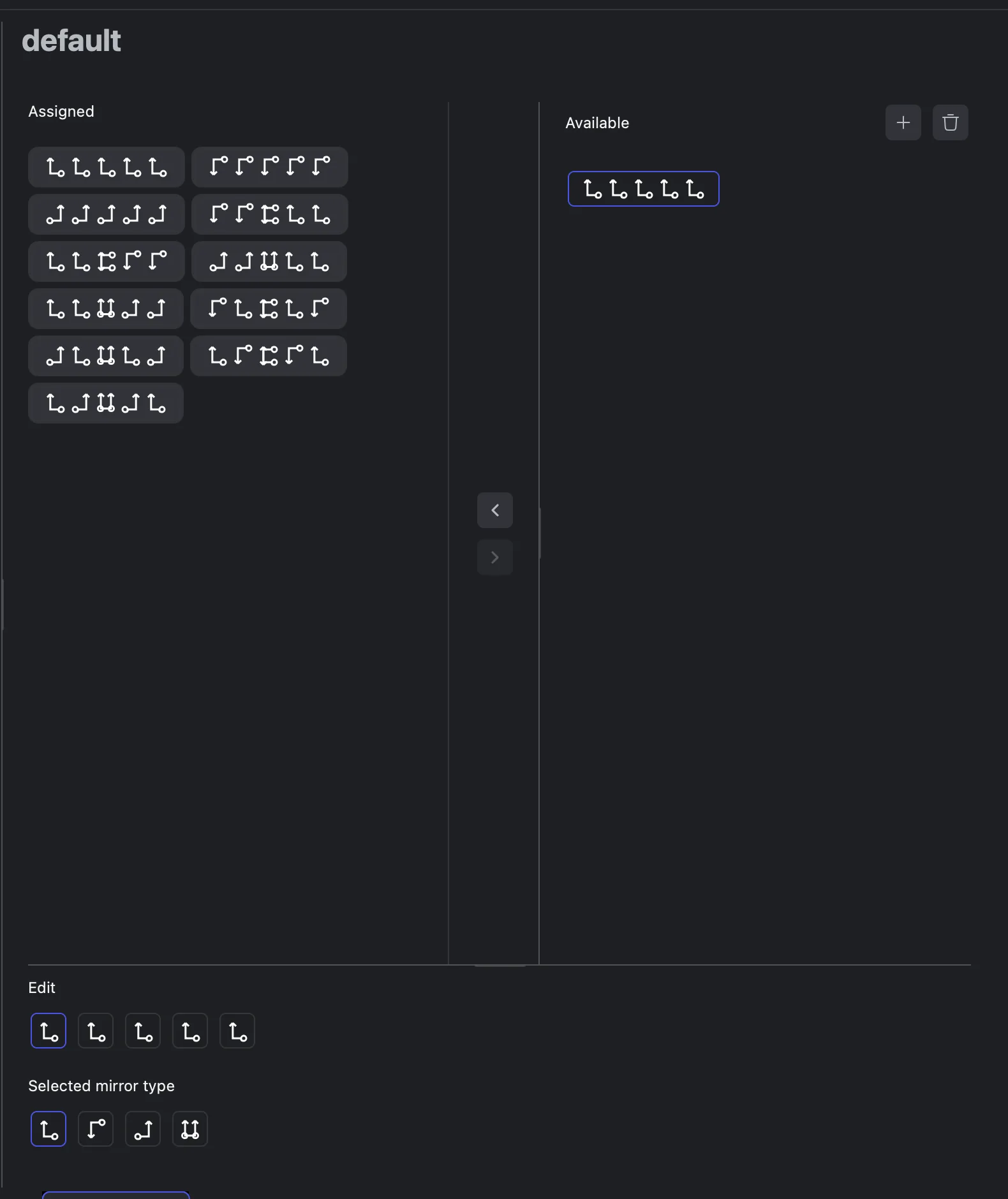
Chroma blend, Reflective and Zone Chase settings have two lists: Assigned (shown on the Performance page) and Available (the rest of the library). Select an item and use the arrow buttons to move it between them. Unassigning doesn't delete it.
Hue Shift and Motion Fan have nothing to set up.
Hue Shift
Rotates every colour around the colour wheel, and can spread different hues across the rig.
| Drag | Parameter | What it does |
|---|---|---|
| Up / down | Hue | Rotates every colour; one pad height is one full turn |
| Left / right | Gradient | Turns zones on each side of the rig opposite ways; centre zones stay put |
White and other unsaturated colours don't change.
Zone Chase
Runs a colour chase through the zones, read from a chase map image.
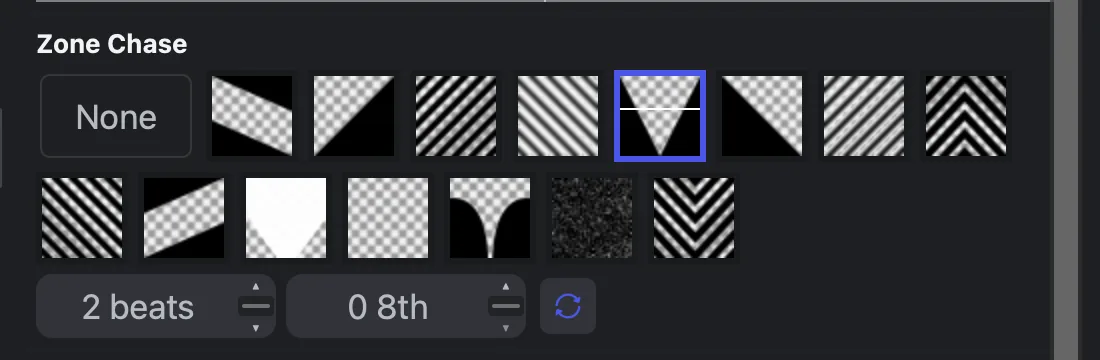
A chase map is a PNG. Left to right is the zones from stage left to stage right; bottom to top is time. A pixel's colour tints the zone, transparent leaves it alone, opaque black blanks it.
| Action on a thumbnail | Result |
|---|---|
| Left-click | Plays the map once, or repeats with loop on |
| Left-drag | Scrubs the map; stops on release |
| Right-click / right-drag | Jumps or scrubs to the height and holds |
The beats and 8th boxes set the length of one pass (it follows the tempo); the loop button
repeats the chase until stopped.
Chase maps
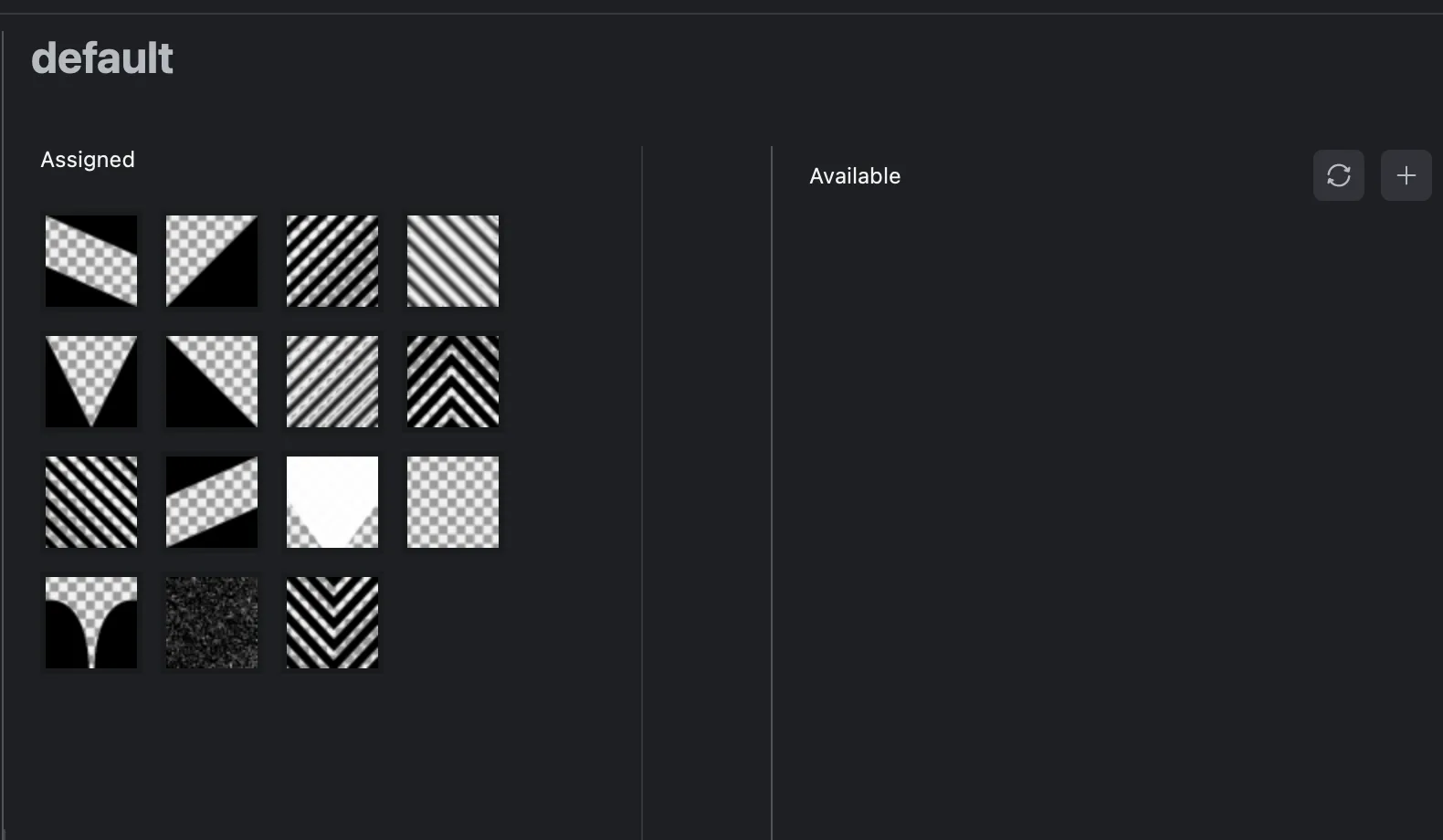
Fifteen built-in maps (sweeps, centre-out, stripes, random flash, waves) are assigned to every new setting. Import your own PNG with the buttons beside Available, or draw one in the Zone Chase Editor.
Chroma blend
Recolours the show with a palette. A palette maps red, yellow, green, cyan, blue, magenta and white to new colours, with an overall strength (Alpha).
| Action on a palette | Result |
|---|---|
| Left-click | Switches to it at full strength and keeps it on |
| Left-drag | Fades it in with the drag; off on release |
| Right-click / right-drag | Sets the strength from the height and holds it |
Click No change to switch Chroma blend off. While it is on, the playing cues' Colorizer track effects are skipped.
Create a palette
- Select a Chroma blend setting on Settings → Master FX.
- Click + beside Available. A palette named **NewColorizer_**N appears.
- Select it, click a source colour in the editor, and set its target with Red, Green and Blue (0–255).
- Set Alpha (0–255), then assign the palette.
Palettes can't be renamed yet.
Reflective
Mirrors or duplicates each zone's picture in a pattern across the rig. Click a pattern to switch to it; No change switches Reflective off.
A pattern has five slots, applied from stage left to stage right: slot 1 is the leftmost zone and every second zone in from the left, slot 2 the other left-hand zones, slot 3 the centre, slots 4 and 5 the same on the right.
| Mirror type | Result |
|---|---|
| Horizontal | Flips the picture upside down |
| Vertical | Flips the picture left to right |
| Horizontal duplicate | Adds a left-to-right mirrored copy |
| Vertical duplicate | Adds an upside-down copy |
| Diagonal duplicate | Adds a copy flipped both ways |
Duplicate types draw twice the points, so detailed content may flicker.
To make a pattern, click + beside Available, select the new **NewPattern_**N, click a slot in the Edit area and pick its Selected mirror type. The editor offers None, Horizontal, Vertical and Horizontal duplicate.
Motion Fan
Moves the beams sideways and fans them apart, optionally rippling across the rig.
| Drag / press | Parameter | What it does |
|---|---|---|
| Left / right | Motion | Moves every zone sideways (−2 to 2) |
| Up / down | Fan | Spreads zones out or in from centre stage (−2 to 2) |
| Where you press | Delay | Off-centre presses ripple the motion across the rig, up to one second; the side sets the direction |
Troubleshooting
| Problem | Check |
|---|---|
| Some zones ignore an effect | Give the zone a position in the Routing stage preview |
| An imported map is missing | Only PNG files load. Refresh, then assign it |
| A new palette, pattern or map is not on the Performance page | Assign it to the setting whose radio button is on |