Performance
Shortcut pads
Store a list of steps and recall it with one press.
A shortcut pad replays a stored list of steps (go to a page, set a slider, play a cue, set the tempo) with one press.
The pads
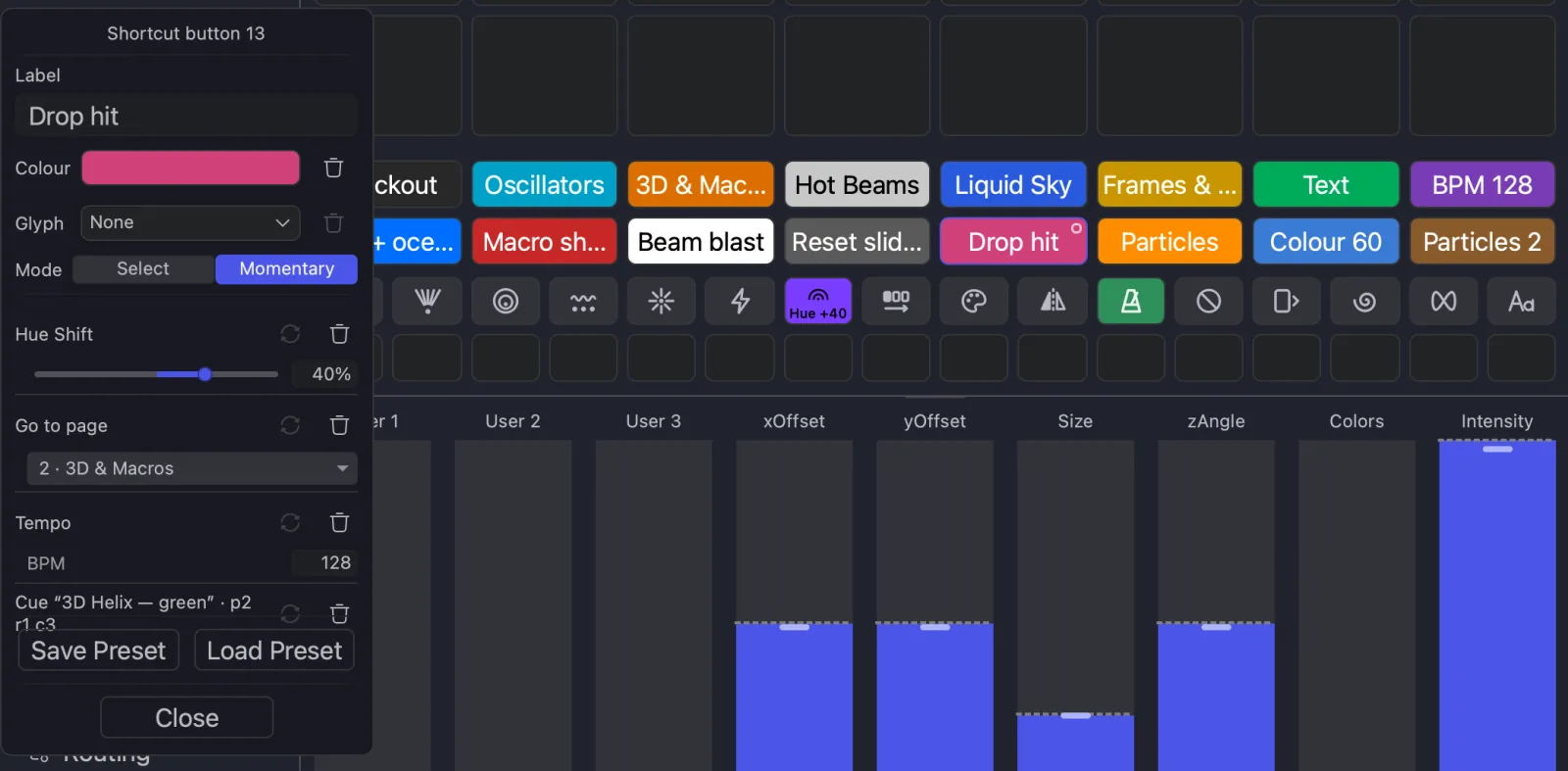
The 48 shortcut pads sit under the cue pads and are the same on every page. The top bank (Shortcut button 1 to 16) shows each pad's colour and Label; the bottom bank (17 to 48) shows its colour and Glyph. A grey pad has no steps, and a glyph shows only once the shortcut has steps. A wide enough small pad also shows the Label in tiny type.

Select and Momentary
Mode in the drawer sets what happens on release. New shortcuts are Select.
| Mode | On press | On release |
|---|---|---|
| Select | Applies the steps | Changes stay |
| Momentary | Applies the steps | Puts back the values from just before the press |
What Momentary puts back:
| Step | Restored to |
|---|---|
| Master slider, tempo, trigger mode, Force, polyphony, Solo | The previous value |
| Master effect | The panel's state before the press (a running Zone Chase is not restarted) |
| Go to page | The page that was showing |
| Cue | Its playing state before the press: a cue it started stops; a cue already playing keeps playing |
| Blackout, stop all cues, laser on/off | Nothing |
If two held Momentary shortcuts change the same thing, releasing both in any order restores the state from before the first press. A large Momentary pad shows a small ring.
MIDI, DMX/Art-Net, OSC and UDP press and release shortcut pads like the mouse, so Momentary works from hardware. See External control.
Record a shortcut
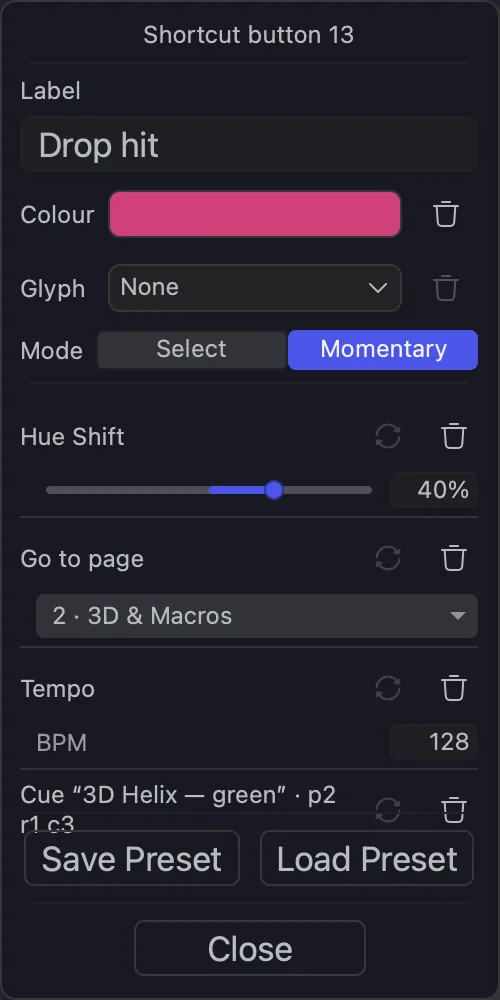
Everything you do while the drawer is open is recorded into that shortcut, and also happens on the output.
- Right-click the shortcut pad and choose Edit shortcut. The drawer opens on the left.
- Do what the shortcut should do: pick a page, press a cue pad, move a master slider, change a master effect in the MasterFX panel, change the BPM, or click a trigger-mode button, Force, the polyphony number or Solo.
- Adjust the step values in the drawer.
- Click Close, then press the pad to try it.
- Moving the same control again updates its step; a drag records only where you let go.
- A cue step plays its cue on its own page, whatever page is showing, and finds the cue if it has moved to another pad. It follows the cue's own trigger mode.
- A tempo that follows an external clock (EXT or CLX lit) is not recorded.
- Blackout records as a Slider Intensity step at 0 %. Recorded BPM is rounded to a whole number.
- Changing a value in the drawer updates the stored step only; it doesn't touch the output.
- Reset when the shortcut is released (Select mode only) resets that value to its default on release.
- With the drawer open, clicking another shortcut pad switches the drawer to it. To clear a shortcut, delete each step.
- Assigning a User fader while the drawer is open records a step that re-maps it (for example User 2 → Intensity); pick another control with the step's drop-down. A Momentary shortcut puts the old assignment back on release.
Fade a shortcut with a User fader
A User fader can blend a shortcut's values in and out instead of pressing it.
- Right-click the shortcut pad → Control with User 1 (2, 3), or right-click the fader → Assign to → Shortcut.
- Bring the fader to 0, then move it up. At 0 the values are as they were; at 100 they are the shortcut's.
- Faded: master sliders, Hue Shift, Motion Fan, Chroma blend amount and the BPM. A different Chroma blend palette switches on as the fade starts. Cue, page, trigger-mode, polyphony, Solo, pattern and User steps are left out; they still run when you press the pad.
- While a fade is under way, the pad shows a thin bar along its bottom edge.
- Back at 0, every value is put back as it was. A control you change another way meanwhile keeps its new value.
- A shortcut with nothing to fade shows (empty) under the fader.
Presets, duplicates and moves
- Save Preset stores the steps, Mode and Glyph, not the label or colour. Load Preset → Apply to Button N replaces the steps.
⌥-drag (macOS) /Alt-drag (Windows) a shortcut pad onto another to duplicate it.⌘-drag (macOS) /Ctrl-drag (Windows) to move it; onto an occupied pad, the two swap.