Getting started
Install and first launch
Install Live Alchemy, start it and keep it up to date.
The installer puts Live Alchemy, Show Alchemy and Trace Alchemy on the computer, all at the same version. An update replaces all three.
Install
| System | Where the apps go | Notes |
|---|---|---|
| macOS | Applications → Laserworks | Run the .pkg; it asks for an administrator password. A new install replaces the version there |
| Windows | C:\Program Files\Laserworks\Loop Alchemy |
Run the .exe. If it offers to uninstall an older version in Excalibur Laser Systems, accept |
| Linux | ~/Applications/Laserworks/LoopAlchemy |
No password needed. Run as root, it installs in /opt/Laserworks/LoopAlchemy, where the apps can't update themselves |
To uninstall on macOS, drag the Laserworks folder to the Trash. Workspaces, presets and settings
stay in Documents.
The installer can also add laser export plug-ins to Blender, Cinema 4D and Houdini. See Blender add-on, Cinema 4D plug-in and Houdini add-on.
First launch
- Start Live Alchemy.
- If the computer has no licence, the Account window opens. See Licence and account.
- The main window opens on the Performance page with the workspace you double-clicked, else the last workspace (with Auto-Load Workspace on, the default), else an empty one.
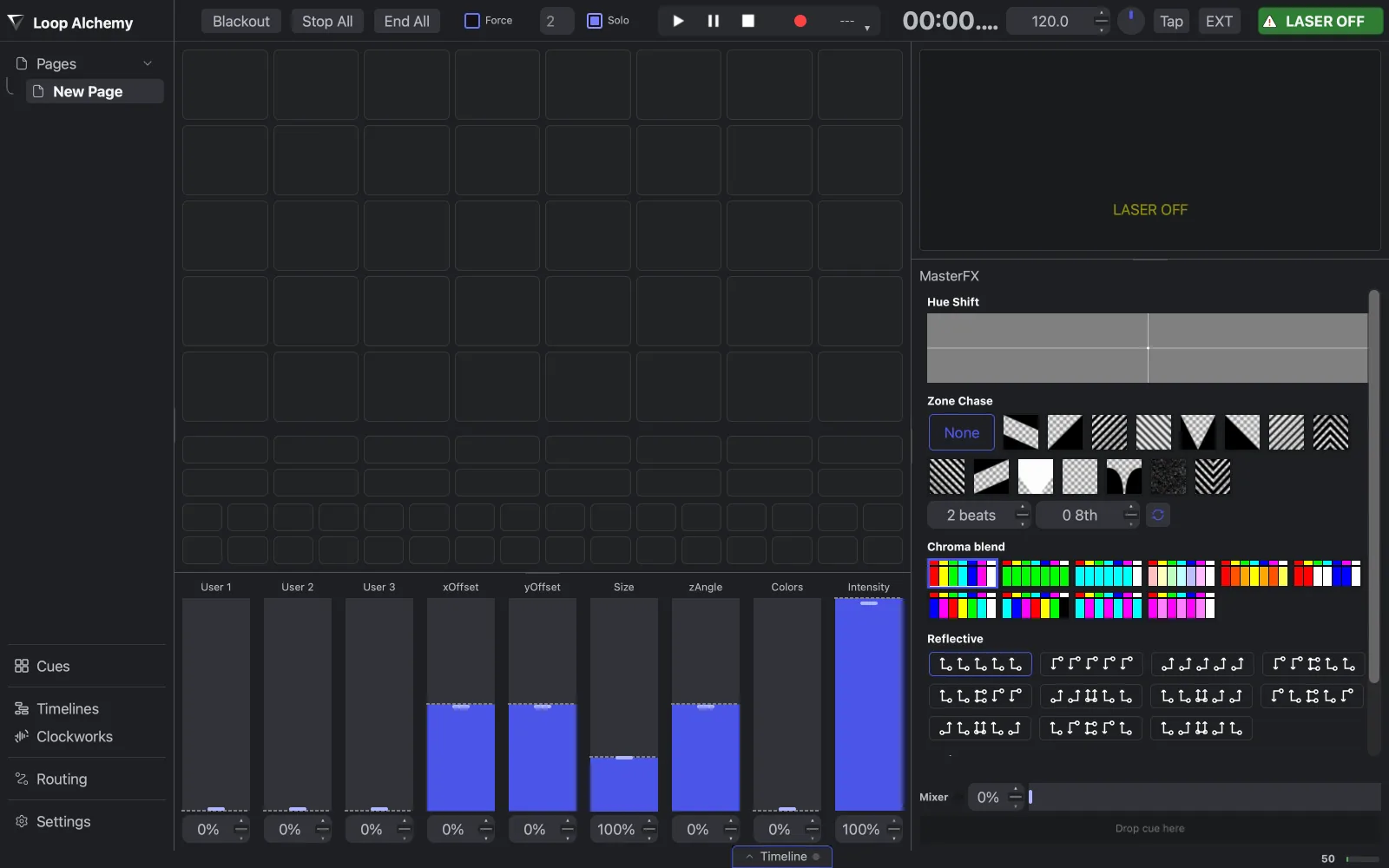
The window title shows the version, the workspace, the number of DACs found and the licence
state. An asterisk after the file name (MyShow.xws*) means unsaved changes.
Double-clicking a Live Alchemy file opens it in the running copy. See Workspaces.
Your files
Live Alchemy keeps its own files in Documents/Excalibur Laser Systems/Loop Alchemy:
presets (presets you save), logs (the last 10 session logs) and system (the crash-recovery
copy of your workspace).
Updates
Live Alchemy checks for updates shortly after it starts.
- macOS: an update found at launch is offered straight away; one found later shows as Install Update in the application menu. Check for Updates… is in the application menu. Installing asks for an administrator password and relaunches the app.
- Windows and Linux: a window appears only when there is an update. Help → Check for Updates… checks now. The app quits first (lasers off, save prompt); cancelling the save prompt skips the update.