Generators
Generators
What generators are, how to add one, and the generators Live Alchemy has.
A generator is what a track draws; effects then transform it. A track can hold several generators, and they draw together wherever they overlap.
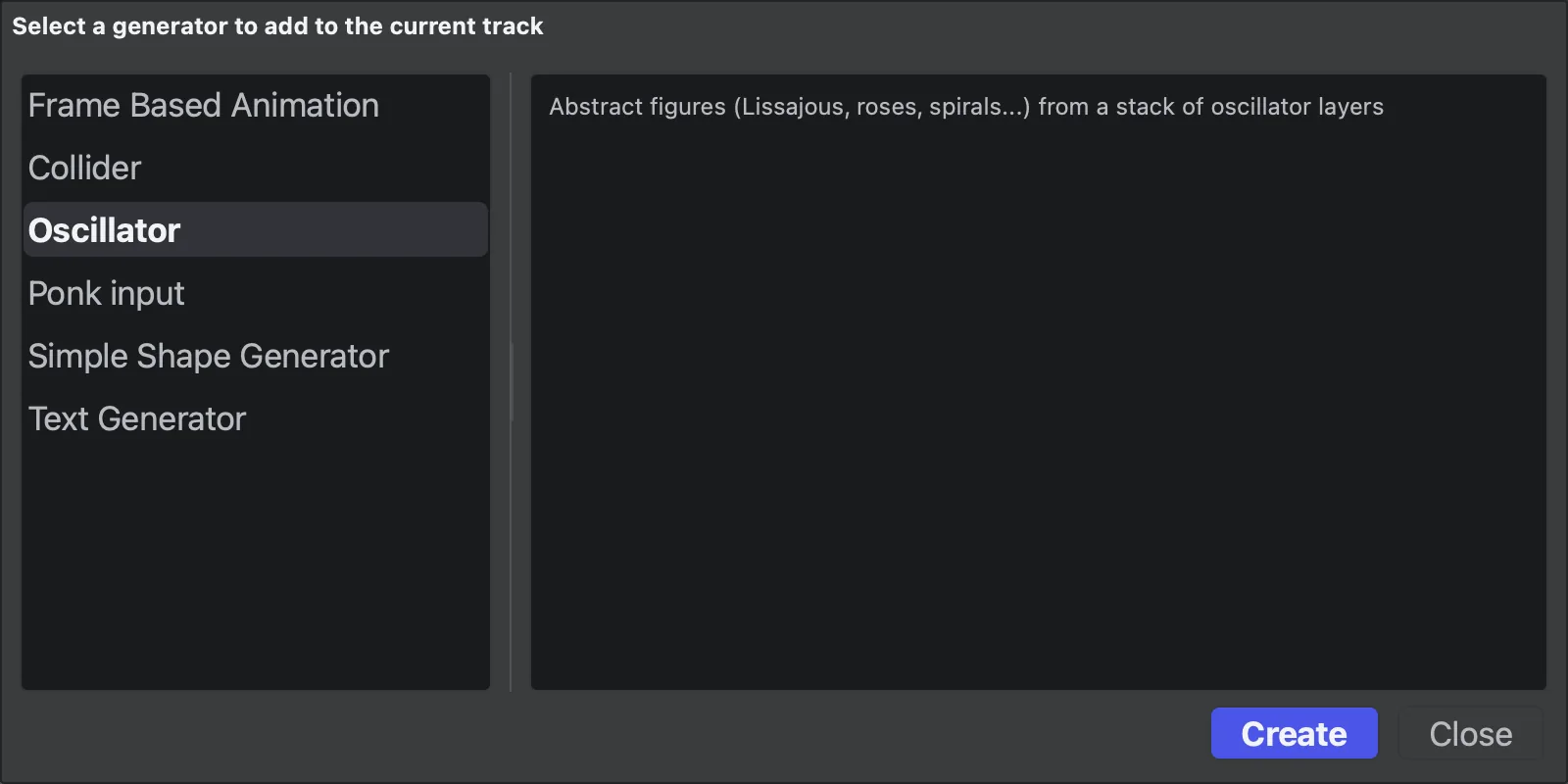
Add a generator
- In the cue editor, select the track.
- In the Generators panel, click + (Add generator).
- Pick a generator and click Create, or double-click it.
A new track starts with a Frame Based Animation generator. Delete it if you only want the one you added.
The generators
| Name in the picker | Page | What it makes |
|---|---|---|
| Frame Based Animation | Animation | Laser frames from the frame bank |
| Simple Shape Generator | Simple Shape | Polygons, alone or morphing from one to another |
| Text Generator | Text | Text in any installed font |
| Oscillator | Oscillator | Lissajous figures, roses, spirals and similar shapes |
| Collider | Collider | Live particles with physics |
| Ponk input | Ponk input | Live laser paths from other software over the network |
Work with generators
- Hover a generator for Duplicate generator and Delete generator. A track keeps at least one generator.
- Expand a generator to set how many times its animation repeats over its block (1 to 16).
- Drag the block's edges in the track area to set when it starts and stops.
- Select a generator to edit it in the parameters panel.
Animating generator parameters
Oscillator, Collider and Ponk input can animate a value with keyframes: click the diamond next to it to add a lane. See Keyframes and envelopes.