Routing
Virtual zones
Spread one picture across several zones, or share it between lasers.
A virtual zone is a canvas bigger than one laser. A cue sent to it draws one picture, and the virtual zone hands each part of that picture to a different zone.
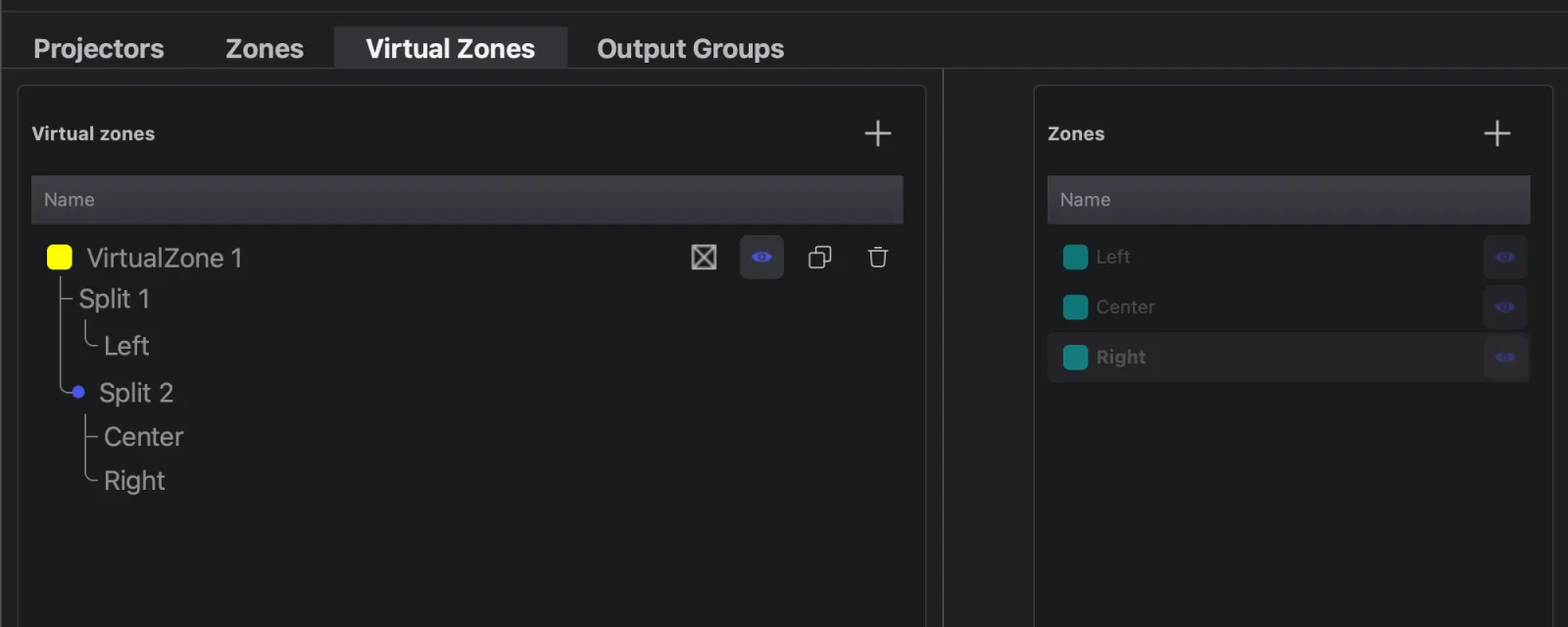
How a virtual zone works
A virtual zone is made of splits, listed top to bottom as Split 1, Split 2…
- The canvas is cut into equal vertical strips, one per split. Split 1 is the left strip.
- Each strip is stretched to fill its zone. With three splits, the left third of the picture fills the first split's zone.
- Shapes that cross a strip edge are cut there and continue in the next zone.
So a beam sweeping across a three-split virtual zone travels from the left laser to the centre one to the right one.
A split normally has one zone. A split with two or more zones is distributed: see Distributed splits.
Virtual zones or output groups
Both send one track to several zones. They do opposite things with the picture:
| Virtual zone | Output group | |
|---|---|---|
| Picture | One picture, cut into parts | The whole picture, copied |
| Each zone shows | Its own strip | Everything |
| Use it for | A wide effect across the stage, a chase from laser to laser | The same look on every laser, or on a chosen set |
For example, a horizontal line sent to a three-zone virtual zone becomes one long line across the stage. Sent to an output group of the same three zones, it becomes three lines, one per laser.
Build a virtual zone
- On the Virtual Zones tab, click + (Add virtual zone).
- Select it, select a zone in the Zones list on the right, and click the arrow (Add zone to virtual zone). That makes Split 1.
- Select the next zone and click Add zone as new split. Repeat for each zone, left to right.
- Select a split and use Move split up / Move split down to fix the order.
When to use one
Use a virtual zone whenever several zones should act as one surface: a row of lasers along a stage, a set of projectors on a wide screen, or left and right lasers that should play mirrored looks as one picture. Send cues to the virtual zone instead of to each zone.
It doesn't need several lasers. Two zones side by side on one projector, used as two splits, give that laser a left half and a right half that can be shaped separately (for example to wrap around a corner).
Distributed splits
A distributed split sends its whole strip to several zones, and shares the work: each projector draws some of the shapes, in proportion to its scan rate. Together they draw the full picture.
Use it when two or more projectors point at the same area and the content is too busy for one laser: shared between them, it flickers less.
- Select a split (or a zone inside it).
- Select another zone and click Add zone as distributed to current split.
A dot next to the split shows Distributed scanning active. The zones in a distributed split must be aligned on the same area, or the picture falls apart. The hand-over settings are in Distributed.
Laser and video together
A zone is on one projector, so a Video DAC projector needs zones of its own. To copy a wide picture to video, build a second virtual zone from the video projector's zones and send the track to an output group that holds both virtual zones.