Docs
Live Alchemy
What Live Alchemy is and where to start.
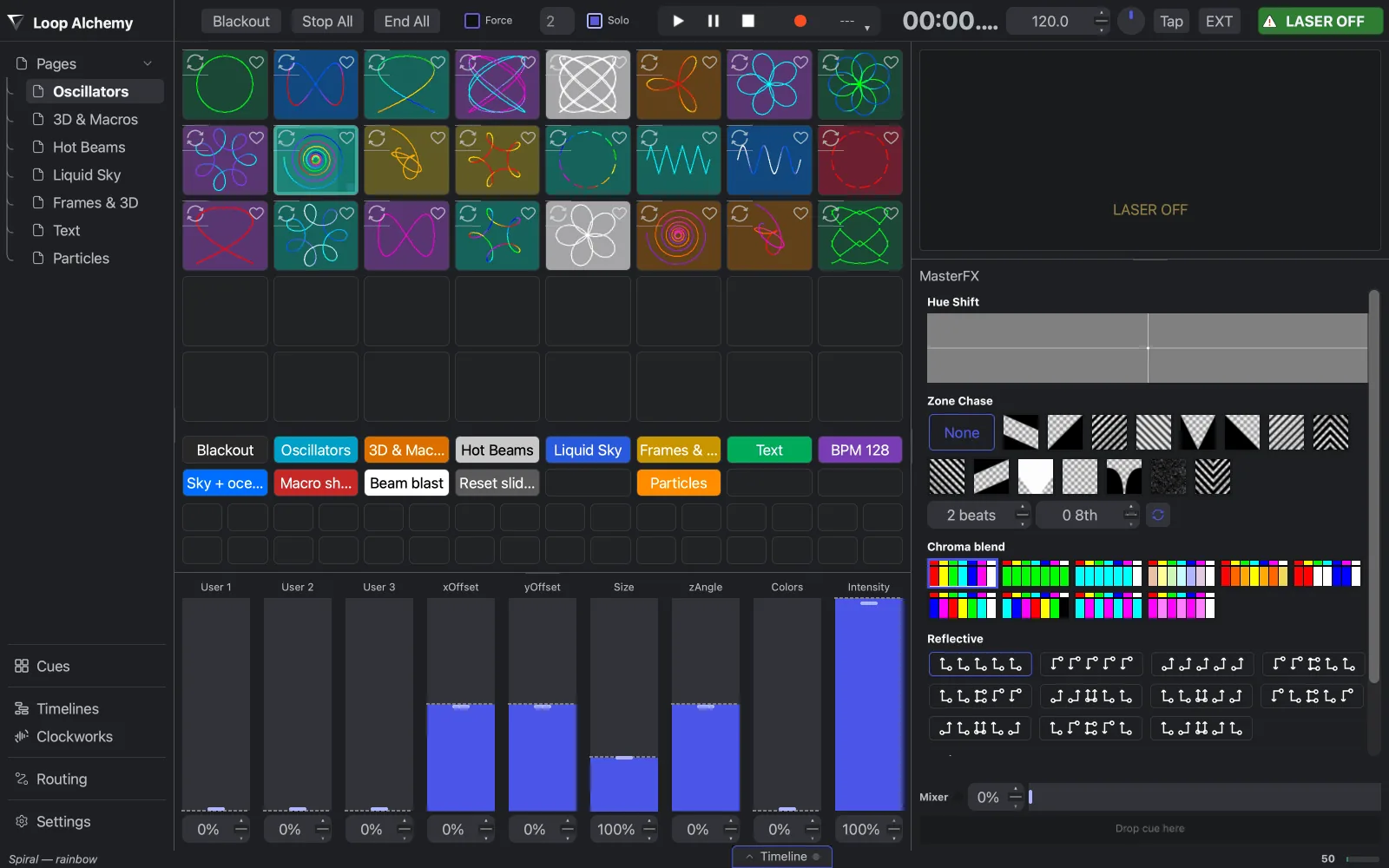
Live Alchemy builds laser content as cues and plays them live from pads, in time with the music, or as a fixed show on a timeline.
The apps
| App | What it is for | |
|---|---|---|
 |
Live Alchemy | Build cues and timelines and play them live. This guide covers it. |
 |
Paint Alchemy | Draw and edit laser frames, inside Live Alchemy |
 |
Trace Alchemy | Turn pictures, artwork and video into ILDA frames |
 |
Show Alchemy | Play show packages rendered from Live Alchemy |
What a workspace holds
One workspace file (.xws) holds a whole show.
| Part | What it is | Where you edit it |
|---|---|---|
| Cues | Laser content: tracks, each with a generator and effects | Cues page and the cue editor |
| Pages | Grids of pads that trigger cues | Pages in the sidebar |
| Timelines | Cues, effects, audio and video on a time ruler | Timelines page |
| Routing | Projectors, DACs, zones and outputs | Routing page |
| Master effects | Effects applied to everything you play | Performance page and Settings → Master FX |
Start here
Then read How routing works, for how a cue reaches a laser, and How the timeline works, for fixed shows.
Coming from Pangolin BEYOND? Coming from BEYOND maps its terms to Live Alchemy.
The rest of the guide
| Section | Read it to… |
|---|---|
| Performance | Play cues from pads or the computer keyboard, use shortcut pads, set the tempo |
| Cues | Build cues, tracks, keyframes and envelopes |
| Generators | Choose a content source: shape, text, ILDA animation, oscillator… |
| Effects | Use track, cue and master effects |
| Timeline | Build a fixed show against music and video, and render it |
| Routing | Connect lasers, shape zones, split pictures across projectors, dim with Power Maps |
| Settings | Change application preferences |
| External control | Drive Live Alchemy from MIDI, DMX/Art-Net, OSC or UDP |
| Alchemy apps | Use the Cloud Library, Show Alchemy, Paint Alchemy and Trace Alchemy |
| Trace Alchemy | Trace pictures, artwork and video into laser frames, and keep their point count down |
| Reference | Look up shortcuts, file formats, troubleshooting and terms |
File types
These files show the apps' icons, and a double-click opens them. Every other format is in File formats.
| File | What it is | Opens in | |
|---|---|---|---|
 |
.xws |
Workspace: a whole show | Live Alchemy |
 |
.xcue |
One cue | Live Alchemy |
 |
.xfb |
Frame bank: frame stacks | Live Alchemy |
 |
.xenv |
Envelope preset | Live Alchemy |
 |
.xrec |
Event recording | Live Alchemy |
 |
.ild |
ILDA laser frames | Live Alchemy, Trace Alchemy |
 |
.xshow |
Show package rendered from a timeline | Show Alchemy |
Conventions
Labels are in bold, exactly as in the app. Where keys differ, both are given: ⌘ (macOS) /
Ctrl (Windows), ⌥ (macOS) / Alt (Windows). Terms are in the Glossary.
In this guide
More pages are on the way as the guide is checked against the app.
Getting started
- Install and first launch Install Live Alchemy, start it and keep it up to date.
- Licence and account Sign in, start a trial and keep the licence valid offline.
- The main window The sidebar, menus, toolbar and status bar.
- Workspaces One show in one file.
- Your first show From an empty workspace to a cue on a laser.
- Coming from BEYOND Pangolin BEYOND terms and their counterparts in the Laserworks apps.
Performance
Generators
Effects
Timeline
- How the timeline works Lay out a fixed show in time and play it.
- Tracks and clips Place, trim, layer and route the clips of a timeline.
- Timeline effects Change the tracks below with effect clips.
- Markers and sections Name the parts of a song and give the timeline a beat grid.
- Keyframes and automation Change a clip's gain or an effect's settings over time.
- Audio and video Play the show's music and video in sync with the lasers.
- Exports and mixdowns Render a timeline to a file, or package it as a show for Show Alchemy.
- Notch blocks Play Notch blocks live on a video track, with their parameters as automation.
Routing
- How routing works How a cue reaches a laser, through zones, projectors and DACs.
- Projectors Add a projector for each laser and match it to the hardware.
- Zones Shape, mask and dim the area a projector draws into.
- Virtual zones Spread one picture across several zones, or share it between lasers.
- Output groups Send one track to a named set of zones at once.
- DACs Find your DACs and give each projector one.
- Power Map Dim parts of a zone with a painted brightness map.
- Video DACs Draw the laser picture on a display, Syphon or Spout.
- Colour calibration Keep a projector's colours true at every brightness, match colours across projectors in Rec. 2020, and reuse the settings as a profile.
- Web zoning Edit zones, masks and Power Maps from a phone, tablet or laptop's web browser on the local network.
External control
Alchemy apps
- Trace Alchemy Turn pictures, vector artwork and video into ILDA frames for Live Alchemy.
- Blender add-on Laserworks Laser Export for Blender turns Grease Pencil drawings, Line Art and curves into laser cues.
- Cinema 4D plug-in Laserworks Laser Export for Cinema 4D turns splines, MoGraph clones and object outlines into laser cues.
- Houdini add-on Laserworks Laser Export for Houdini turns lines, curves and outlines into laser cues.
Trace Alchemy
- How Trace Alchemy works Turn pictures, vector artwork and video into laser frames you can play in Live Alchemy.
- Prepare the image Open or generate a picture and clean it up so it traces into clean lines.
- Trace the image Choose how edges become lines, and how closely the lines follow them.
- Optimise for the laser Turn the trace into laser points, and balance detail, brightness and flicker.
- Video and animations Trace a video or an animated GIF into a sequence of laser frames.
- Export and use in Live Alchemy Write the frames to an ILDA file or your Cloud Library, and play them in Live Alchemy.
- Troubleshooting Fixes for traces that vanish, run slow, flicker or come out invisible on the laser.